

Trusted by:
University of Southern California
Warner Bros.
Volvo
Amazon
Stanford University
Updated: October 29, 2026
11 min read
When a learner finishes a course, your part just begins: issuing their credential, ensuring they open it, updating your CRM, and reminding them before it expires. Certifier now does more of those steps for you, from the moment your LMS records a completion to the emails that follow.
Research with AI:
Docebo and LearnWorlds are now native integrations, so Certifier can issue credentials when learners complete a course. Integrations now work in the other direction too: when a credential is issued, viewed, or expires, Certifier can add a row to Google Sheets or update a contact in HubSpot.
A new Recipients section shows the people you’ve certified, not just the credentials you’ve issued. Email Automations brings all your credential emails into one place, with two new reminders and expiration emails you can time or switch off. Each email workflow also has its own sent-email history, so you can see what went out and what happened next.
There’s also a new walkthrough video of Certifier, for onboarding teammates or catching up on features you haven’t tried.

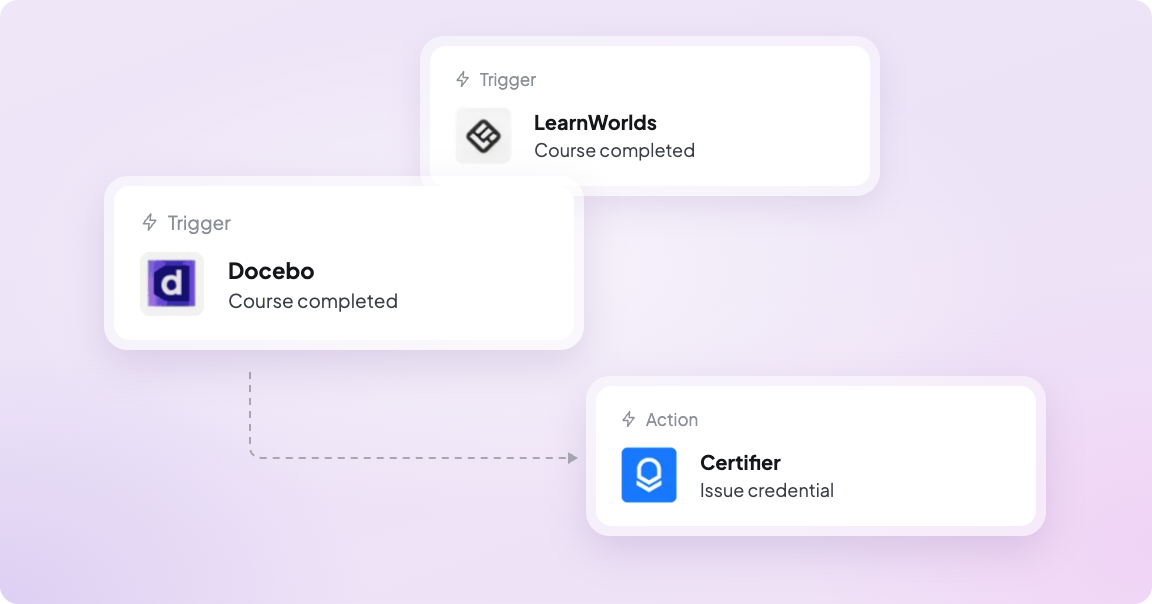
If your courses run in Docebo or LearnWorlds, issuing credentials used to mean exporting completions and uploading them to Certifier, or setting up Zapier. Now you can connect your account, pick a course, and choose the credential template. When a learner completes that course, Certifier issues their credential.
A few details to know:

Each automation watches one course. Create a separate automation for each course that should issue a credential.
Only completions after you turn on the automation are processed, so learners who finished earlier won’t unexpectedly receive a credential.
Docebo needs an admin account to create the API connection. LearnWorlds needs a Learning Center plan or higher.
Docebo and LearnWorlds join Canvas, Moodle, LearnDash, Teachable, Thinkific, and Kajabi as native LMS integrations.
Until now, automations started somewhere else: a course completion or form submission in another tool triggered a credential in Certifier. Now events in Certifier can start an automation too, so your other tools stay up to date without exports or a separate automation platform.
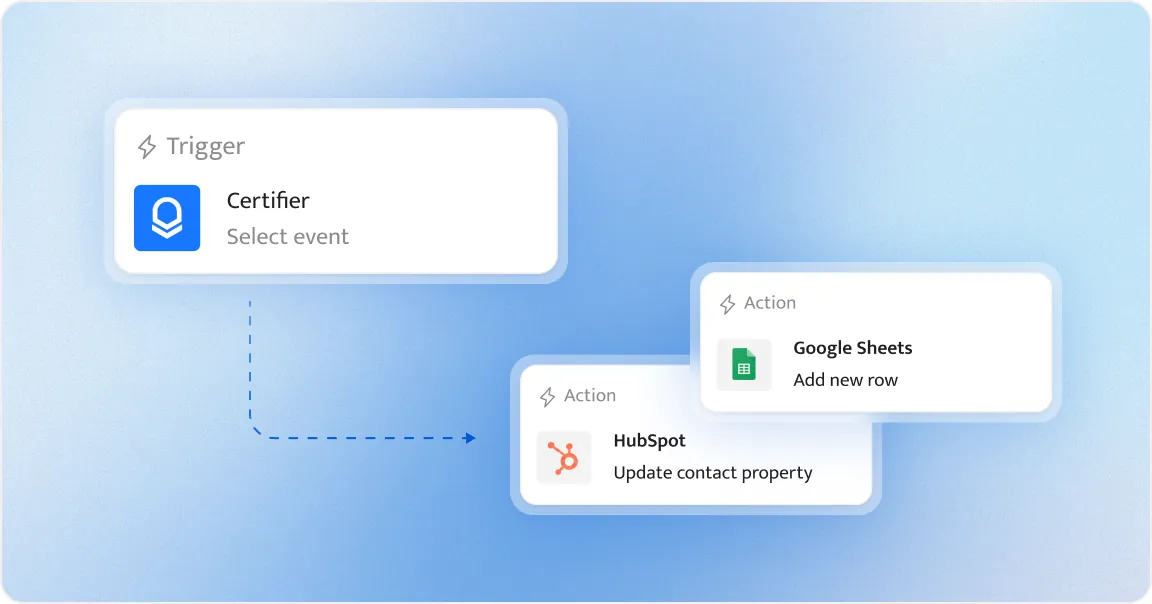
You can start an automation when a credential is:

created
issued
viewed
shared
downloaded
expired
New Certifier Forms responses can start one too. Then choose what happens next:
Google Sheets: add a new row, for example to keep a running tracker of every credential you issue.
HubSpot: update a contact property, for example to mark someone as certified when their credential is issued, or as lapsed when it expires.
A few details to know:
The viewed, shared, and downloaded triggers fire only when the credential’s owner takes that action. A visit to their public credential page from someone else won’t trigger the automation.
If another tool you use can start a workflow when a new row appears in Google Sheets, you can use a sheet to pass Certifier events along to it.
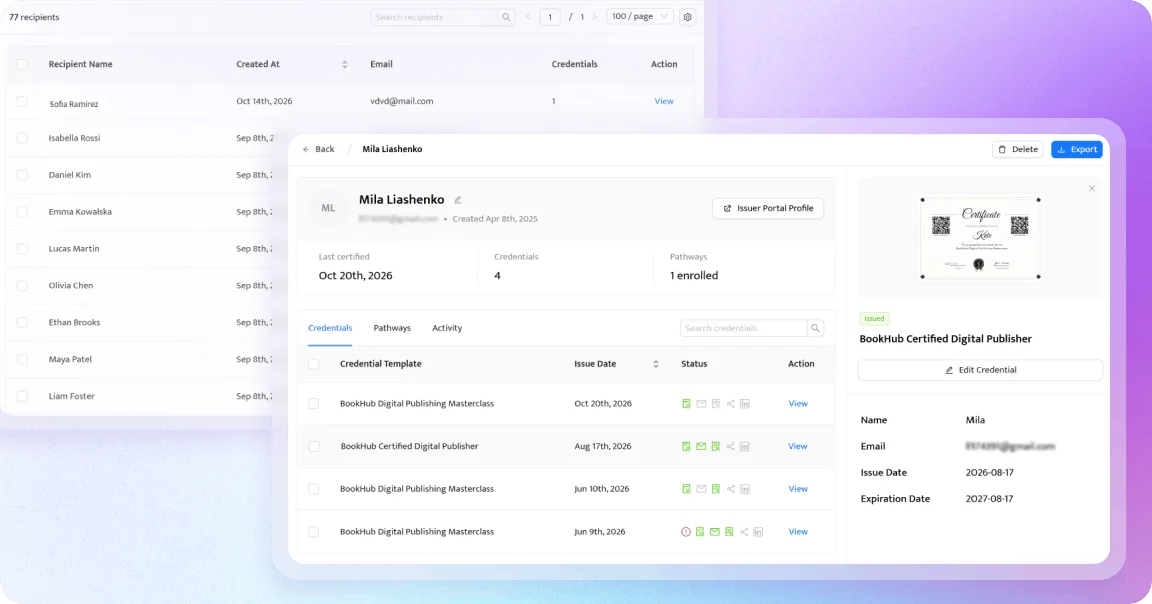
If you run a training program, an association, or a CPD scheme, your relationship with a person usually outlasts a single certificate. The new Recipients section gives each person their own place in Certifier. Instead of searching credential by credential, you can see who you’ve certified, which credentials each person holds, and whose credentials are coming up for expiry.
Until now, following up with a recipient who hadn’t opened their credential meant resending the email by hand. Expiration reminders went out 14 days before expiry whether that suited your program or not, and turning them off meant contacting our team.
Email Automations brings five credential emails together in Workflows → Emails.
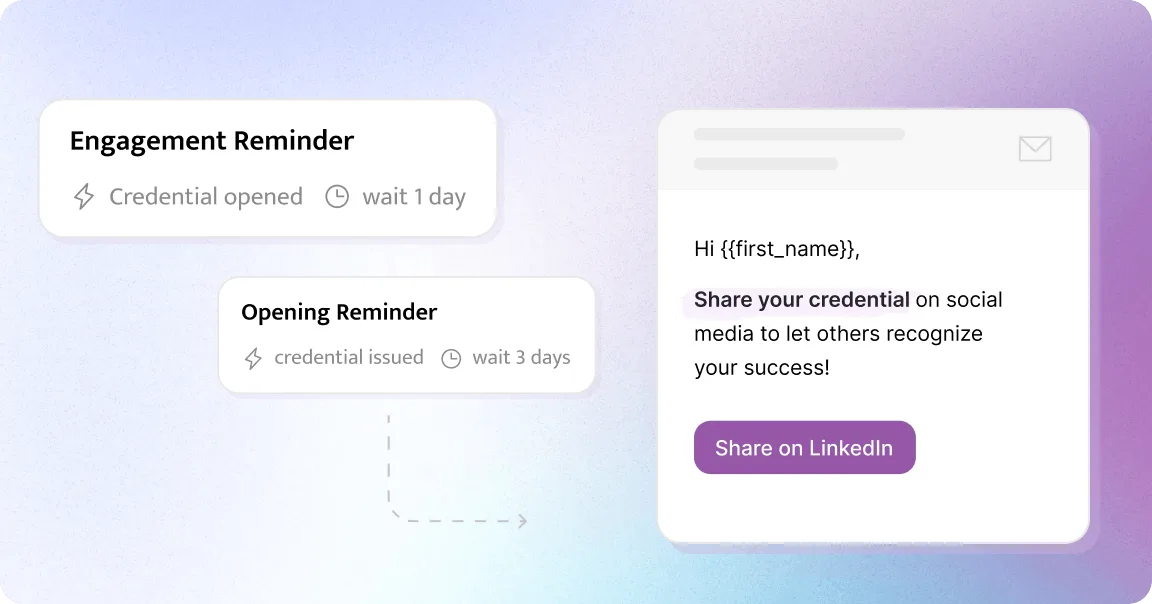

Credential delivery: sends recipients their credential when it’s issued.
Opening reminder (new): nudges recipients who haven’t opened their credential, 1, 3, 7, 14, or 30 days after it’s issued.
Engagement reminder (new): follows up with recipients who opened their credential but haven’t downloaded it, shared it, or added it to LinkedIn, 1, 3, 7, 14, or 30 days after they opened it.
Expiration reminder (now configurable): goes out 180, 90, 45, 30, 14, 7, 3, or 1 days before expiry, or not at all.
Expired notice (now configurable): goes out on the expiry date, the next day, or 3, 7, or 14 days later, or not at all.
Set your workspace defaults once: the delivery email template, which follow-ups are on, and when they go out. Every credential template uses those defaults unless you change them in Credential Template → Email Settings, the same way sender details work. For example, you could send opening reminders after 7 days across your workspace, but after 1 day for an event badge, or switch them off for that program entirely.
A few details to know:
Opening and engagement reminders start switched off in every workspace, so your recipients won’t get extra emails until you turn them on.
Expiration reminders and expired notices stay switched on. If we turned them off for your workspace at your request, they stay off.
Email Automations configuration is available on Professional and Advanced plans.
When a recipient asks where their credential is, or you want to know how many reminders went out, you can now check for yourself. Each email workflow has its own sent-email history covering the last 90 days. Open Workflows → Emails and click Show Sent Emails on the workflow you want to check.
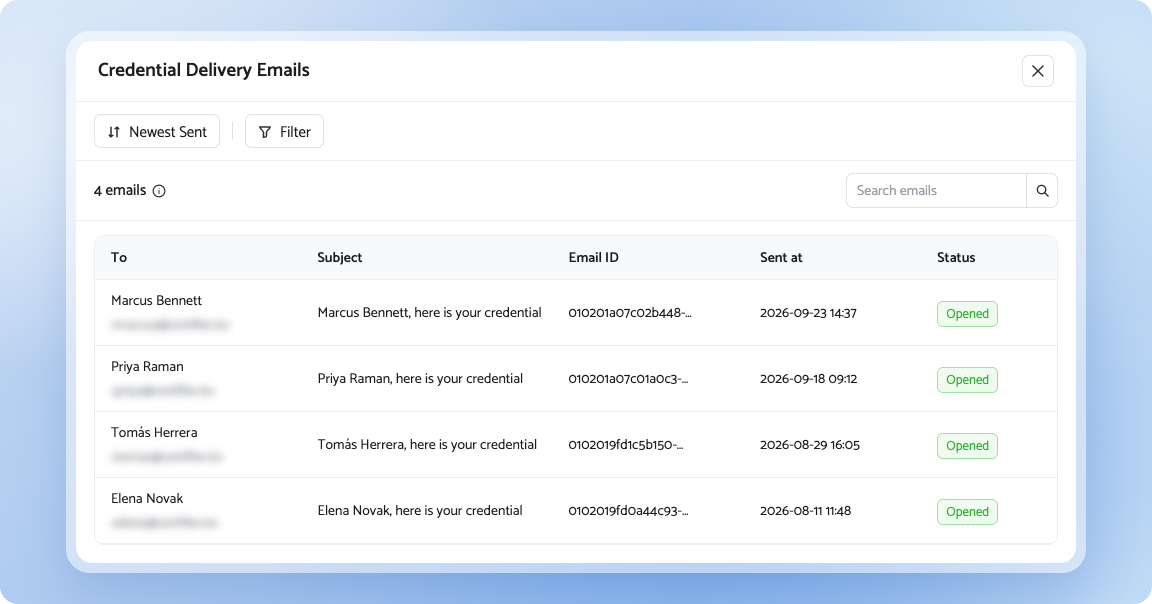
For each email, you’ll see the sender, recipient, subject line, email ID, send time, a link to the credential, and a status: sent, opened, bounced, or marked as spam. “Opened” means the recipient opened the email, not the credential. An email count, search, filters, and sorting help you find a specific message or review recent sends.
Onboarding a new teammate, or want a refresher on features you haven’t tried yet? Our new walkthrough video covers Certifier from start to finish in one place.
Questions about any of these? Reach us through the chat in Certifier or at contact@certifier.io.
No. Automations process only completions that happen after you turn them on. To issue credentials to earlier learners, add them manually or with a CSV upload.
Docebo sends completions to Certifier as they happen. For LearnWorlds, Certifier checks for new completions every 15 minutes.
No. Each automation watches one course. Create a separate automation for each course that should issue a credential.
A credential being created, issued, viewed, shared, downloaded, or expiring. A new Certifier Forms response can start one too.
No. They fire only when the credential’s owner views, shares, or downloads it. Visits from other people to a public credential page don’t trigger the automation.
Not directly yet. If another tool can start a workflow when a new row appears in Google Sheets, you can use a sheet to pass Certifier events along to it.
No. Opening and engagement reminders start switched off in every workspace. Recipients only receive them after you turn them on in Workflows → Emails.
With both reminders on, up to three: the delivery email, an opening reminder if they haven’t opened it, and an engagement reminder if they open it but don’t download, share, or add it to LinkedIn. Expiration emails are separate and depend on the credential’s expiry date.
Yes. Every credential template follows your workspace defaults until you change them in Credential Template → Email Settings. There, you can switch each follow-up on or off, choose different timing, or use a different delivery email template.
No. It means the recipient opened the email. To follow up with recipients who haven’t opened the credential itself, use the opening reminder.
90 days for each email workflow.

- Product Management
- Customer Research
- Digital Credentials
- Product Strategy
- Design Systems
Product Manager
Uliana leads product management at Certifier, using her UI/UX background to explain platform features and help organizations maximize their credentialing capabilities.


