Design builder
Design certificates and badges in a drag-and-drop builder
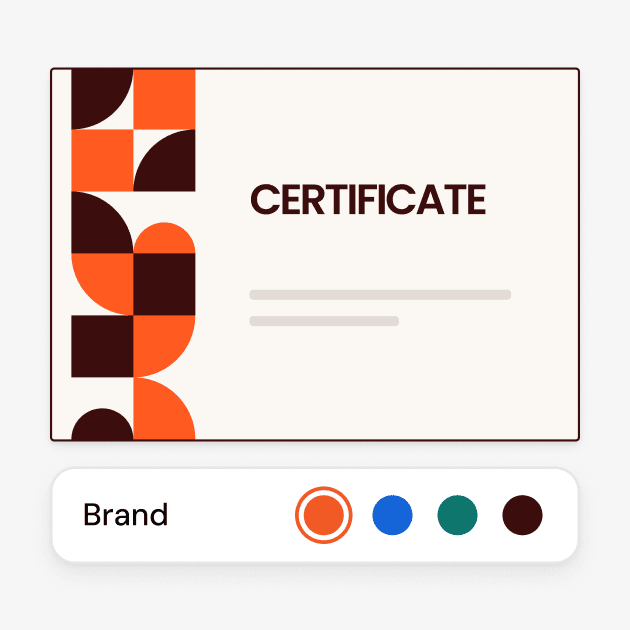
Start with a template or upload your own design. Add your logo, fonts and signatures, then automatically fill in names, dates and other recipient details.


2,000+ organizations and institutions use Certifier






ElevenLabs
ElevenLabs powers its conversational AI partner certification program with Certifier.
View credentials





The Economist
The Economist uses Certifier to award 2,000+ certificates for courses in AI and critical thinking.
View credentials

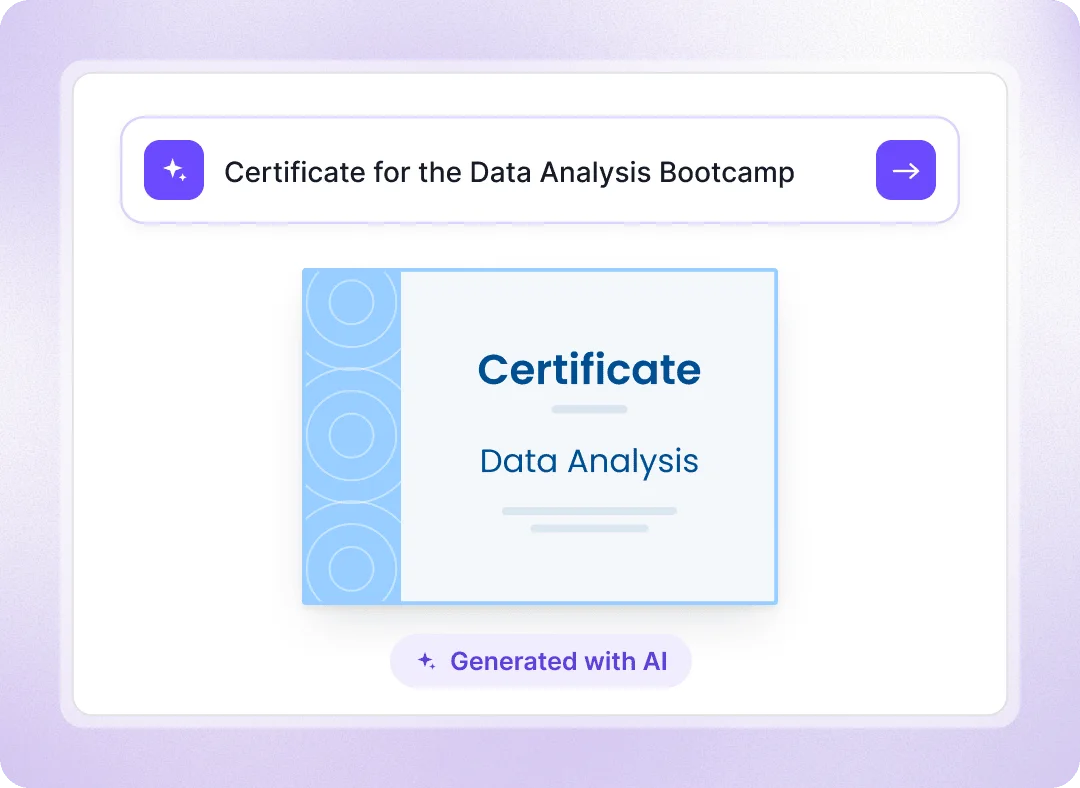
Create with AI
Turns a prompt into a certificate with Certifier AI
Create a credential design with AI: describe the course, or paste its URL. It matches designs and prefills the description, level, duration, skills and earning criteria. Review it, regenerate any section, then adjust the design in the builder.
Regenerate the name, details, skills or criteria
No recipient data is shared with AI models.
Included on every Certifier plan, even on free tiers.
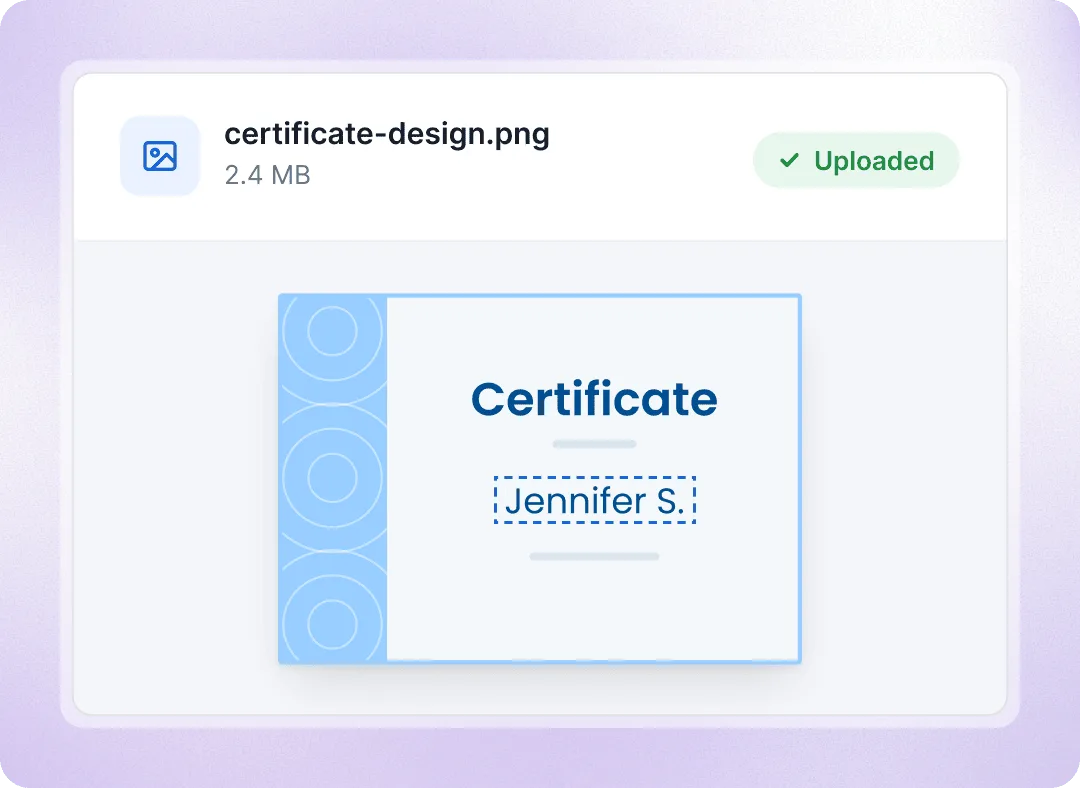
Upload your own design
Already designed it in Figma, PowerPoint, or Google Slides?
Export the design you already have as a PNG, JPG or SVG and add it as a certificate background, which fills the canvas automatically, or as the badge image.
Exports from PowerPoint, Slides, Figma or Canva
PNG, JPG or SVG, under 2 MB each
A4 or US Letter certificates and attachments
Leave space for the required recipient name field
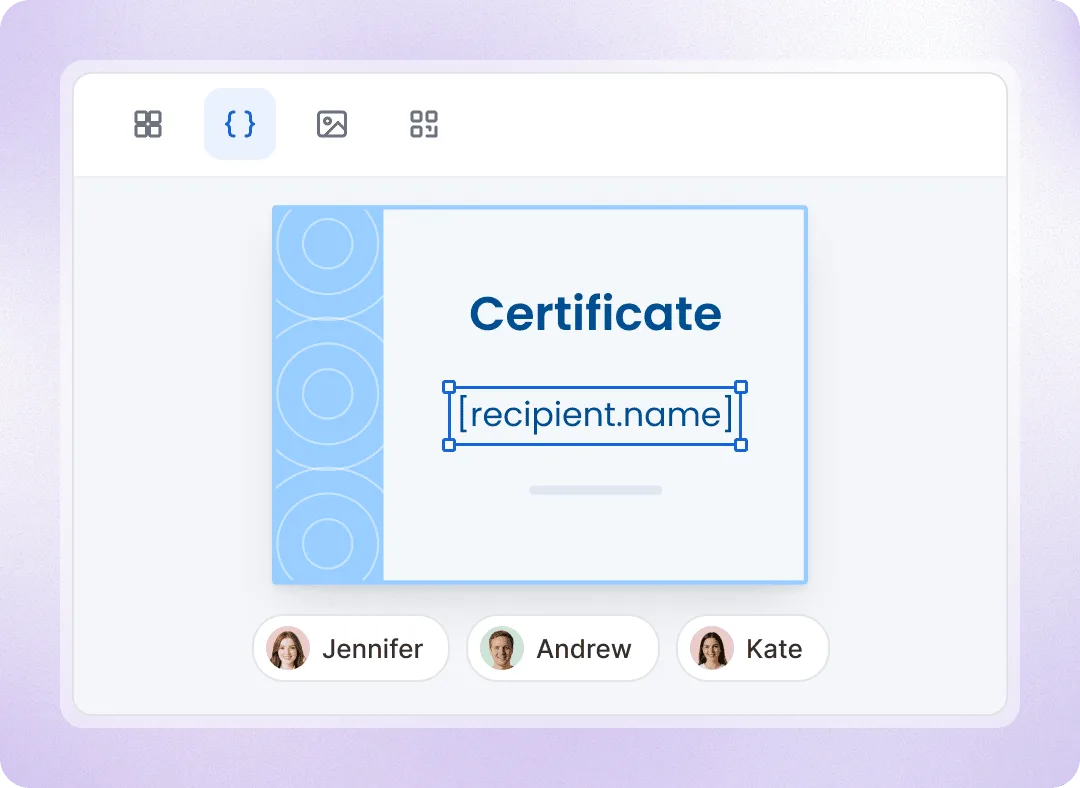
Dynamic fields
Recipient names, details, and scores fill in automatically
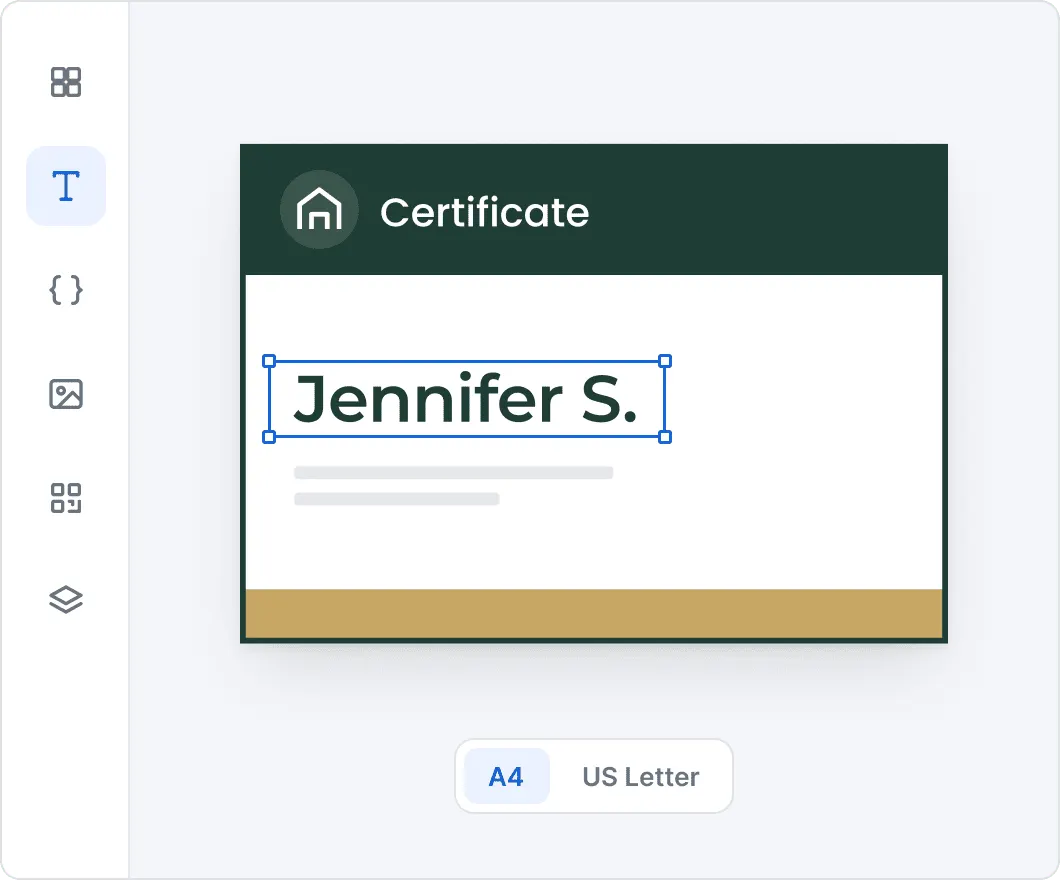
Add placeholders for recipient names, issue and expiry dates, credential IDs, or custom fields like scores, hours, and license numbers. When you issue a certificate, each placeholder automatically fills with the recipient’s data from your spreadsheet, form, or integration.
Text, number, date and image attributes
Turn on scaling so long names shrink to fit
Preview per recipient before issuing
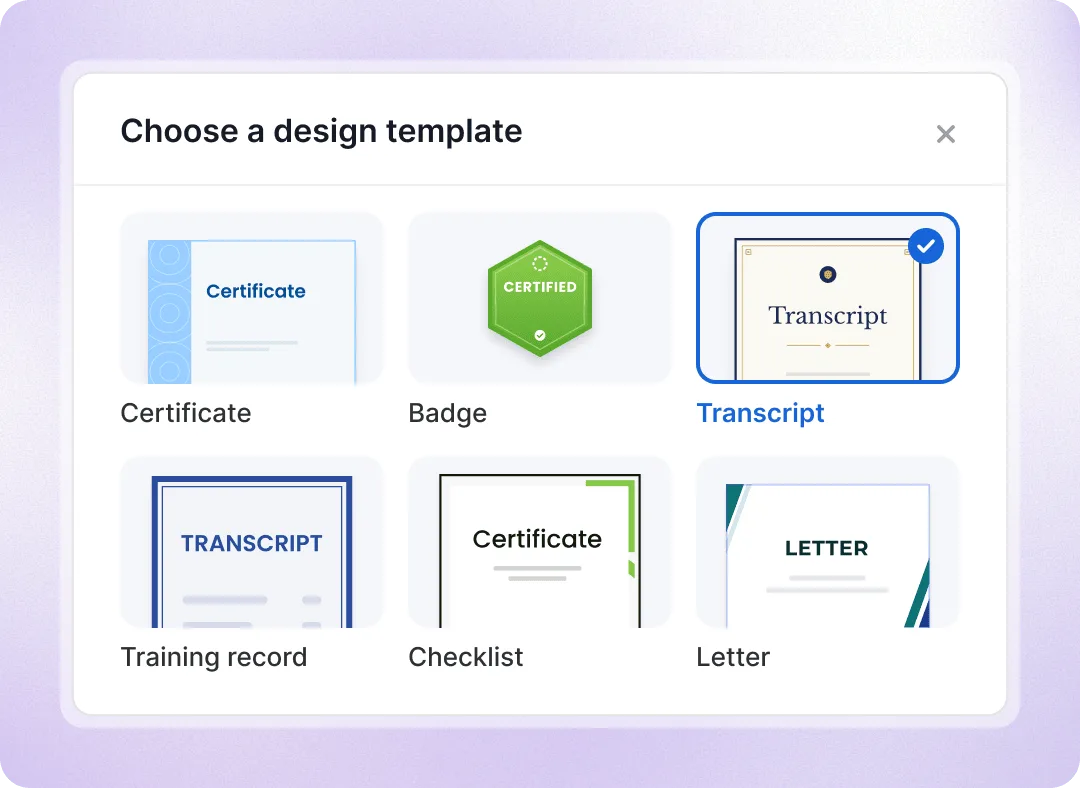
Custom design types
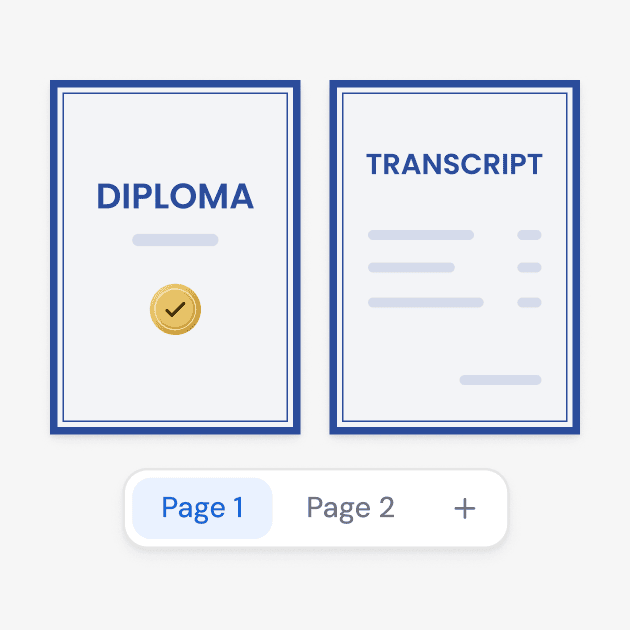
Design transcripts, training records, checklists and letters in the same visual builder
Design documents around your certificates: diplomas, transcripts with modules and credits, CPD logs, training records, skills checklists, or attendance, speaker, and work completion letters.
Page-sized documents on A4 or US Letter
Ready-made templates for every format
Issue it on its own or with a certificate
Certificate templates
Pick one of 1,000+ templates, then rearrange any element
Choose a certificate or badge format, then pick from 1,000+ templates or start from scratch. Customize SVG elements with your brand colors, add text, logos, signatures, shapes, and ribbons. Group elements and control their order with the Layers panel.
Browse templates by category, style and color
Logos, signatures and seals as PNG, JPG or SVG
Filter designs by format or the program using them
Duplicate a design to make a variation
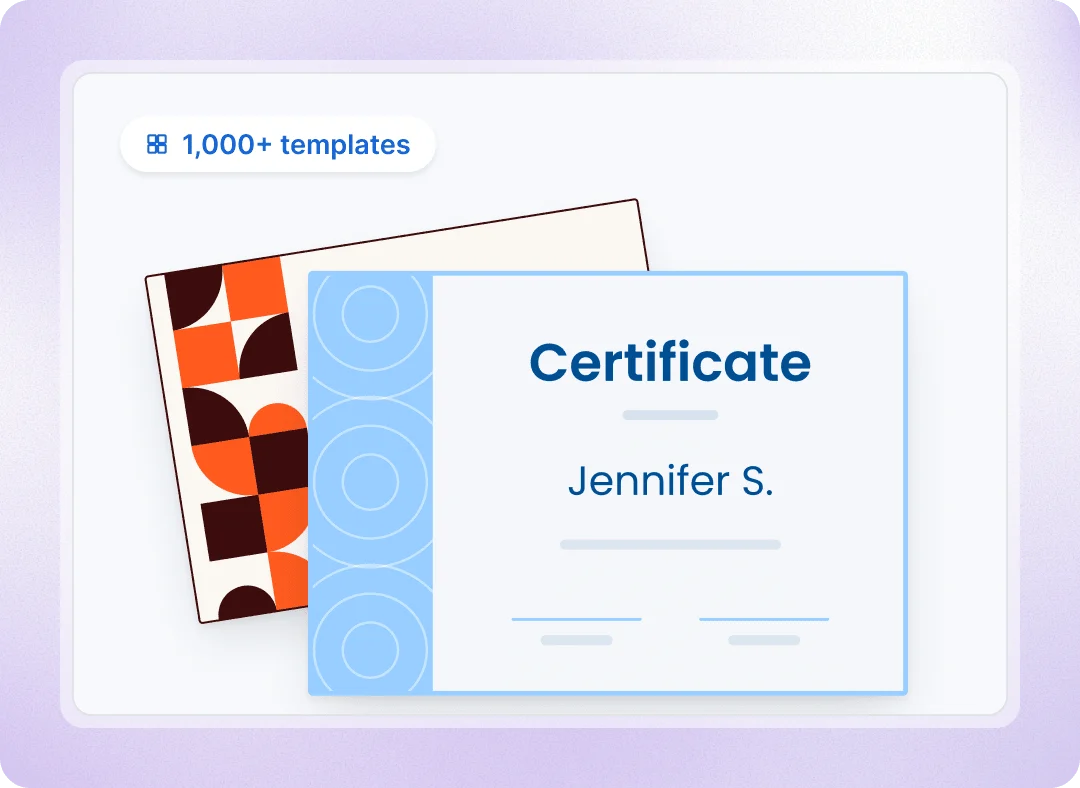
Start with certificate and badge templates

Certification

Training

Achievement

Pathways

Course

Course

Pathways

CPD/CPE

Training

Course

Training

Training

Course

Recognition
Customize how credentials look, update and verify
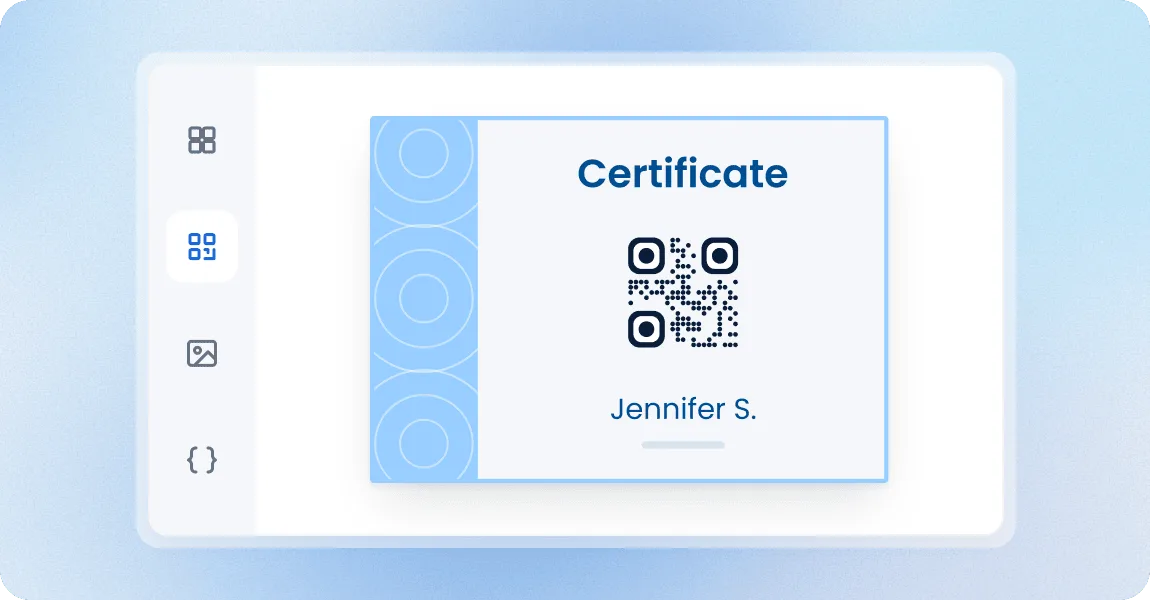
Add QR codes to certificates
A verification QR code is unique to each credential and opens its verification page, so a printed copy can be checked with a phone even if the name on it was altered.
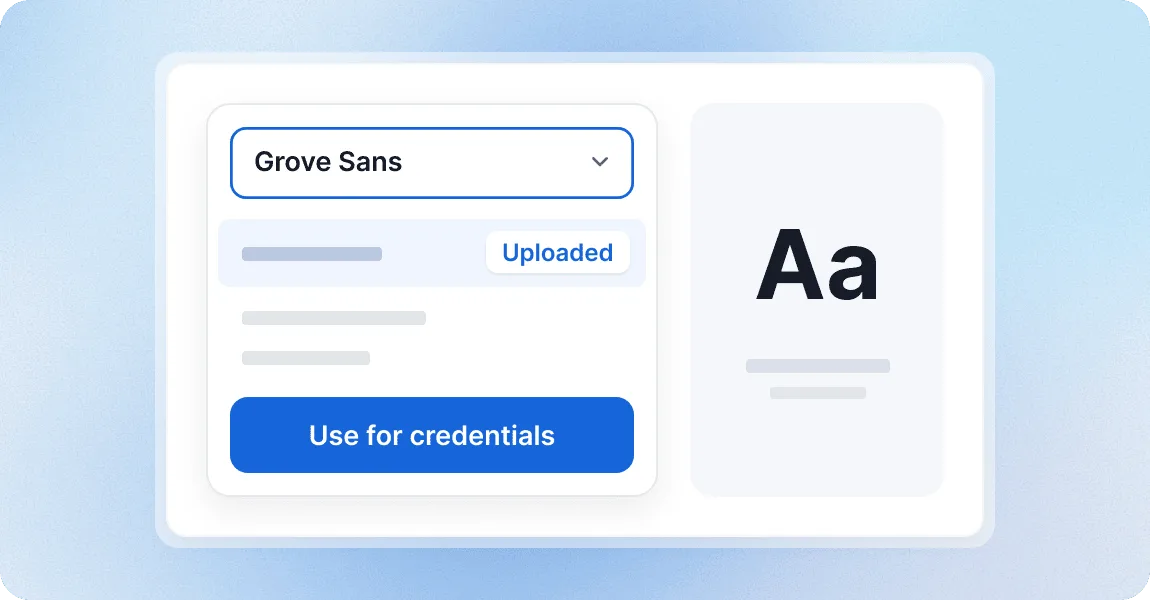
Use your own brand fonts
Upload your own fonts. Use them across certificates and badges to match your brand, with full control over size, weight, and spacing.
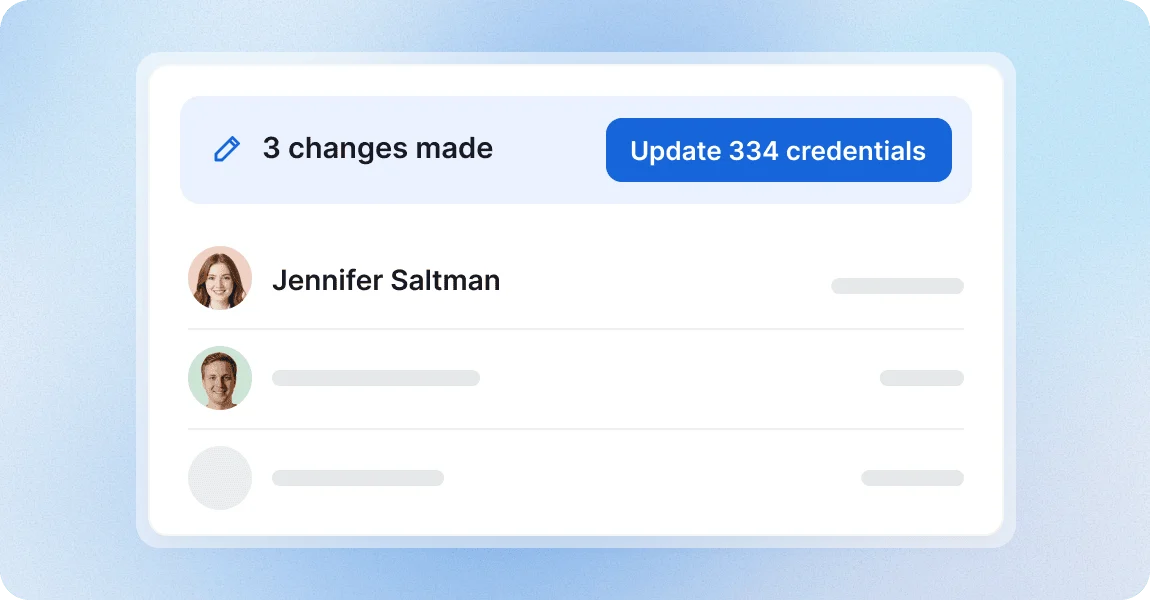
Change the design once and every issued credential updates
Fix a typo, swap a signature or apply a rebrand in the editor, save, and every credential using that design shows the new version, including ones issued long ago, with nothing to reissue.
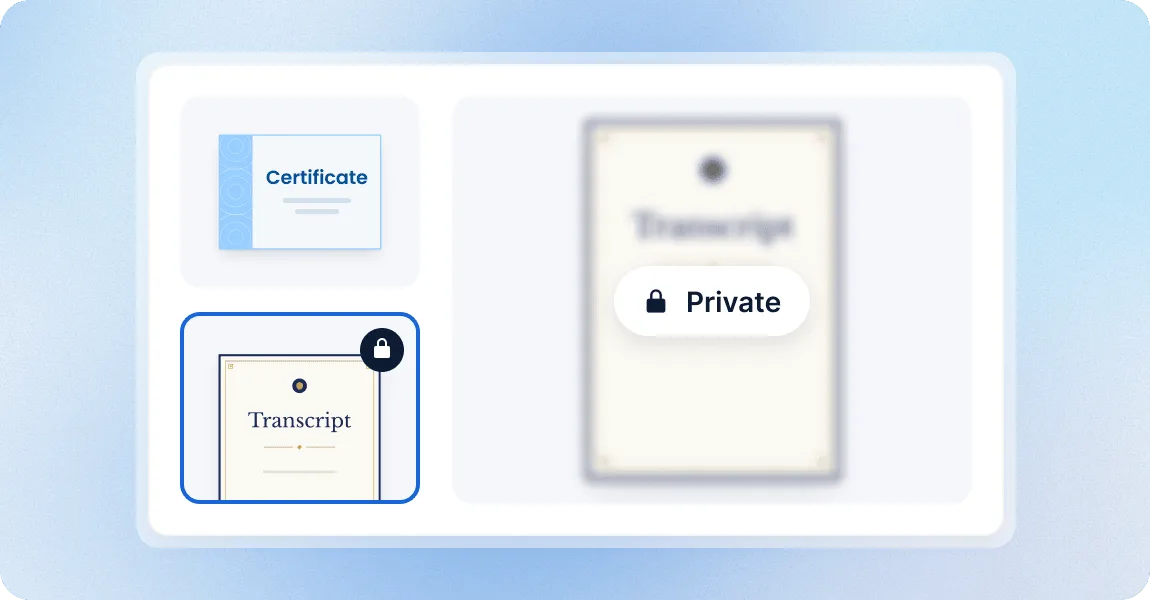
Keep a detailed page for the certificates holder’s eyes only
Mark a design as private and the public credential page shows a locked placeholder in its place. The full version appears only after the recipient confirms ownership with a code sent to the email the credential was issued to.
Design credentials with a platform teams trust
G2 recognized Certifier as 2026 Leader in digital certificate and badge management for all teams.
Best for Enterprise
Best for Mid-Market
Best for Small Businesses