

Trusted by:
University of Southern California
Warner Bros.
Volvo
Amazon
Stanford University
Updated: April 21, 2026
16 min read
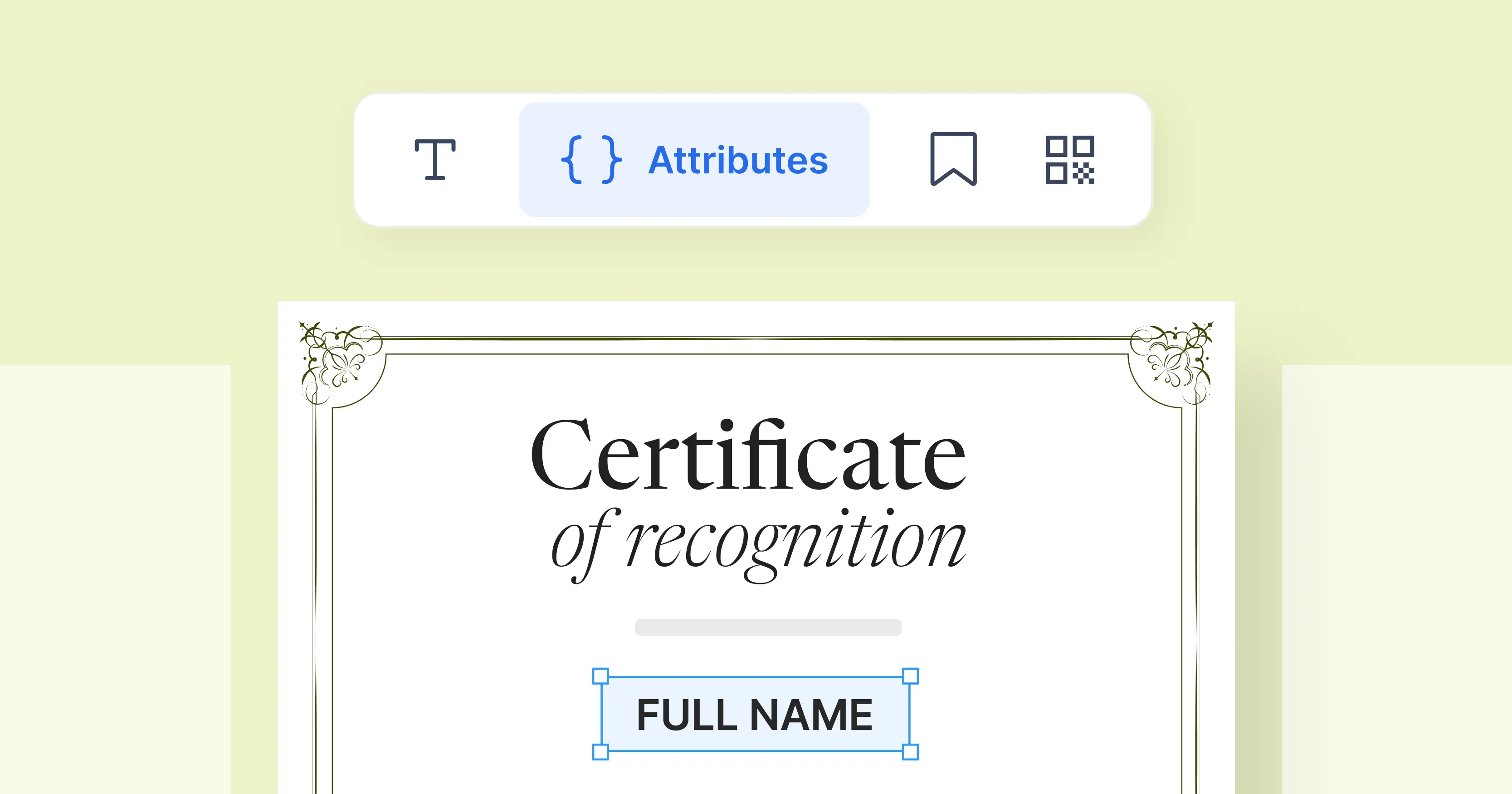
Learn different ways to create a certificate of recognition and see which one is the most efficient. We’ll walk you through the options and show how to do it fastest with Certifier.
Research with AI:
Let's start with the simplest, most efficient way to create a certificate of recognition using Certifier, a user-friendly certificate management tool. Step by step, you’ll see how to choose a template, customize the wording and issue certificates in bulk.
After that, we look at other ways to create recognition certificates. You’ll learn when one-time tools make sense, where they fall short and why a dedicated certificate tool works best when recognition isn’t a one-off.
TL;DR
You can create a certificate of recognition using AI tools, graphic editors, text editors and dedicated certificate tools.
Certifier lets you create professional recognition certificates in minutes, customize wording and issue certificates in bulk or individually.
Certifier is free to start and supports up to 250 recognition certificates with no setup required.

A certificate of recognition is a formal document used to acknowledge someone’s effort, achievement or contribution. It’s commonly given to show appreciation and let the recipient know their work was noticed and valued.
To make a certificate of recognition, you don’t need design skills or complex software. With a browser-based certificate generator like Certifier, you can create professional, beautiful certificates in just a few clicks.
How to make a certificate of recognition with Certifier? Shortcut:
01Sign up for Certifier
02Choose a certificate of recognition template
03Customize your recognition certificate design
04Issue and send recognition certificates in bulk
You’ll need a Certifier account. The good news: signing up is fast and free.
Issue first certificate in 10 minTry our digital credentials platform to generate your first batch of certificates.
The free plan lets you create recognition certificates online and issue up to 250 certificates at no cost, which is more than enough to test the tool or run a full recognition program for employees or course participants.
You can always upgrade your plan if you plan to issue more certificates of recognition.
The easiest way to create a recognition certificate online is to start with a template. Recognition certificate templates save time and make sure your certificate looks professional from the start.
In Certifier, you’ll find a large library of certificate templates created for different occasions: employee recognition, course completion, awards, appreciation and more.
You don’t need to worry about choosing the “perfect” one. Every template is fully editable, so you can treat it as a certificate of recognition sample and adjust it later.
Once you find a template you like, open it in the editor and proceed with customization.
Certifier works directly in your browser, so there’s nothing to install. You can easily customize your recognition certificate by clicking on any text or design element and editing it right away.
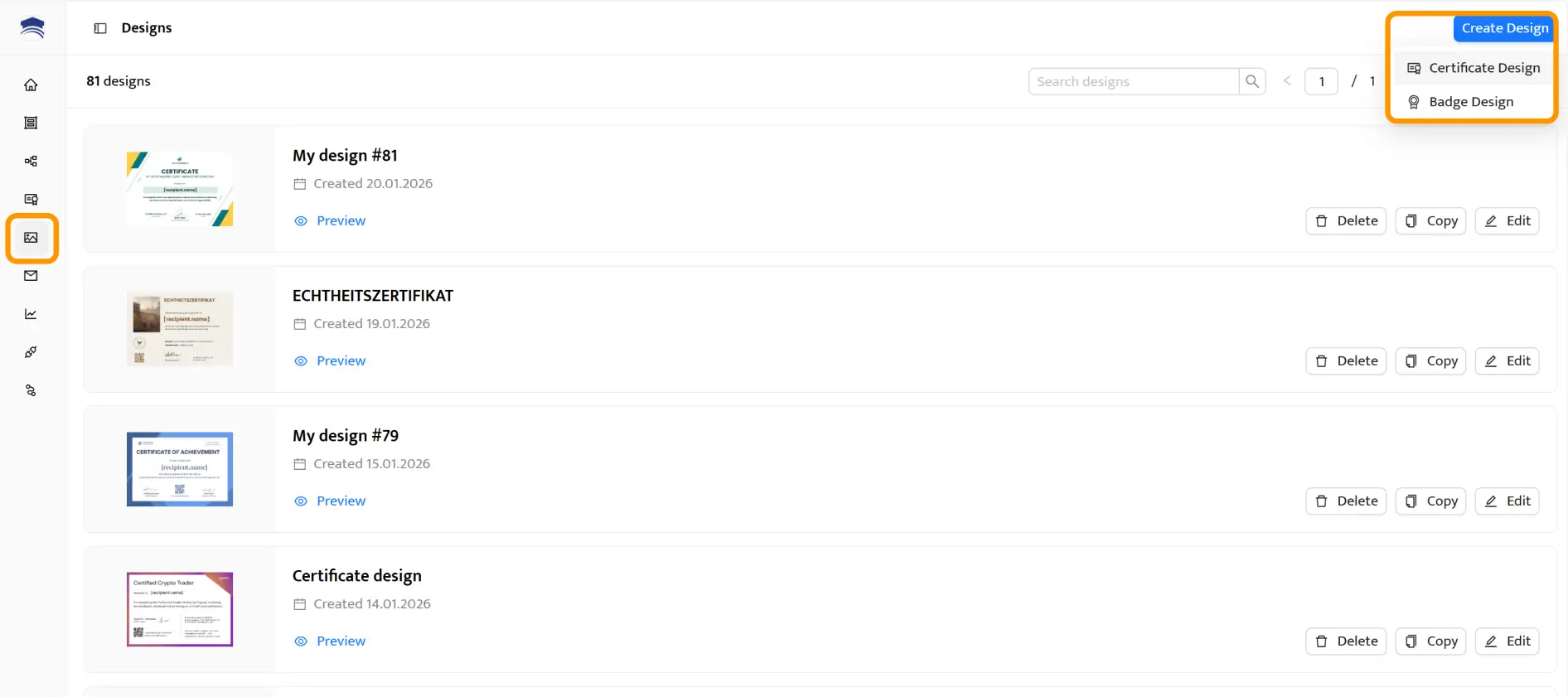
After logging in, go to the Designs tab. Then, choose Create Design → Certificate Design.
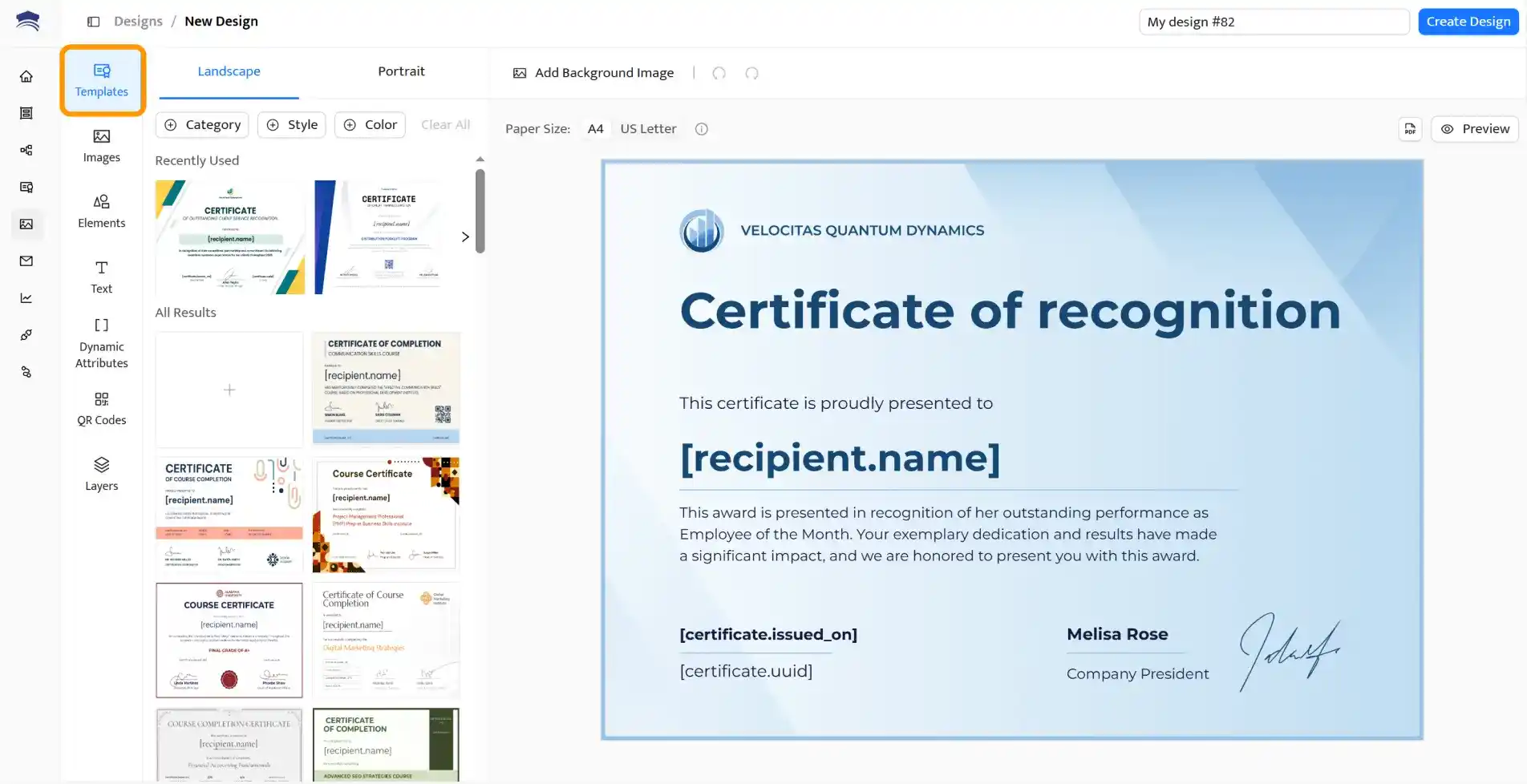
Pick a template from the editor. You can do it in the Templates subtab.
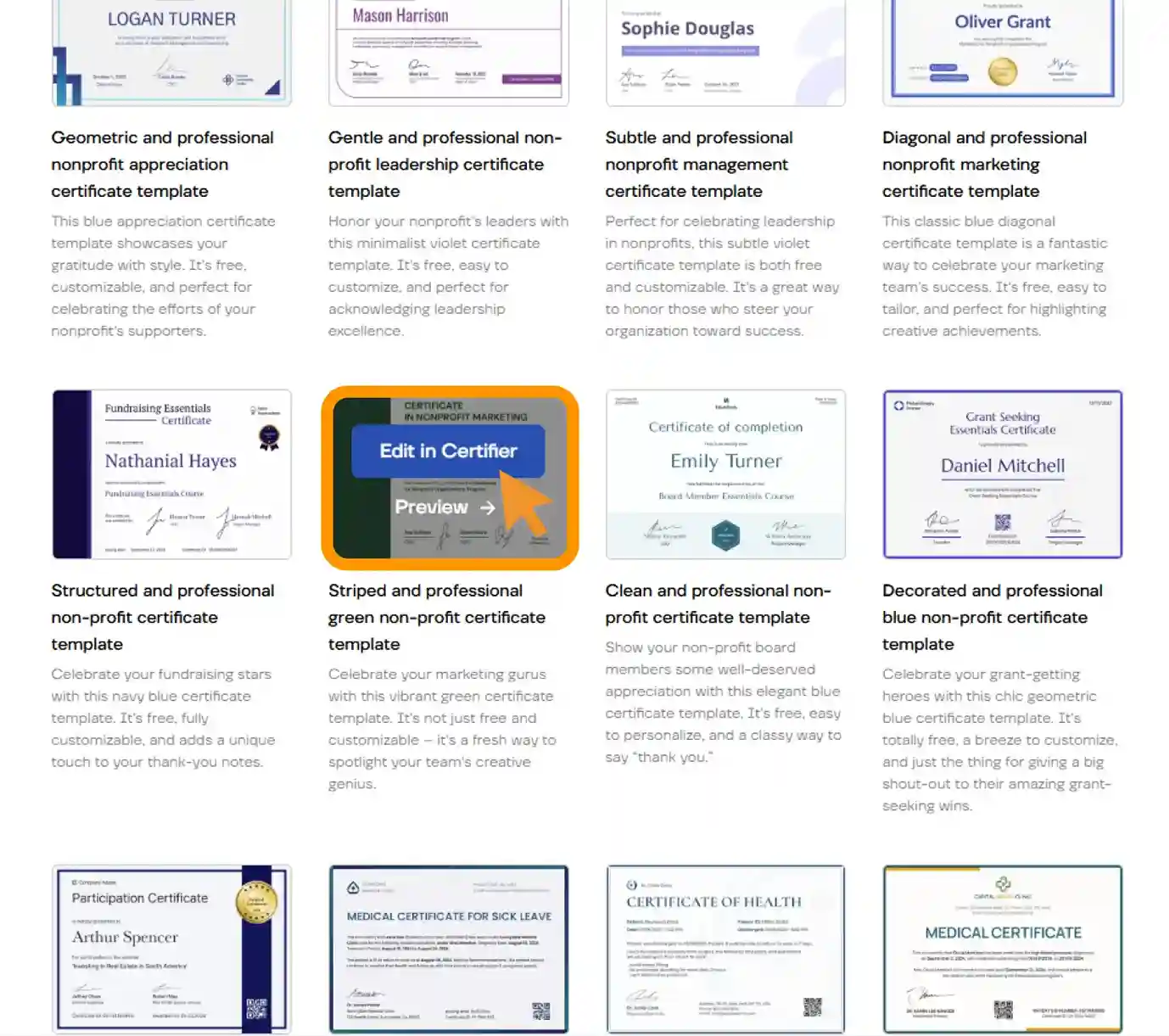
An alternative way to choose a recognition certificate template is to browse the certificate template library, where all templates are displayed in one place. Hover over the template you like and click Edit in Certifier to open it in the certificate template visual editor.
There, in the editor, you can:

Change the wording to match your recognition or award
Adjust fonts, colors and layouts
Add your organization’s logo and branding
Edit graphic elements like icons, borders or backgrounds
This is also where you can add certificate of recognition sample text, such as a short message explaining the achievement, milestone or service you’re recognizing. Everything updates in real time, so you always see what the final certificate will look like.
Static content is information that remains the same across all certificates you issue. Most recognition certificates include:
The certificate title (for example: Certificate of Recognition or Award Certificate)
A short recognition or appreciation message
The organization or issuer name
A logo or visual branding
A signature or issuer name
The date of issue
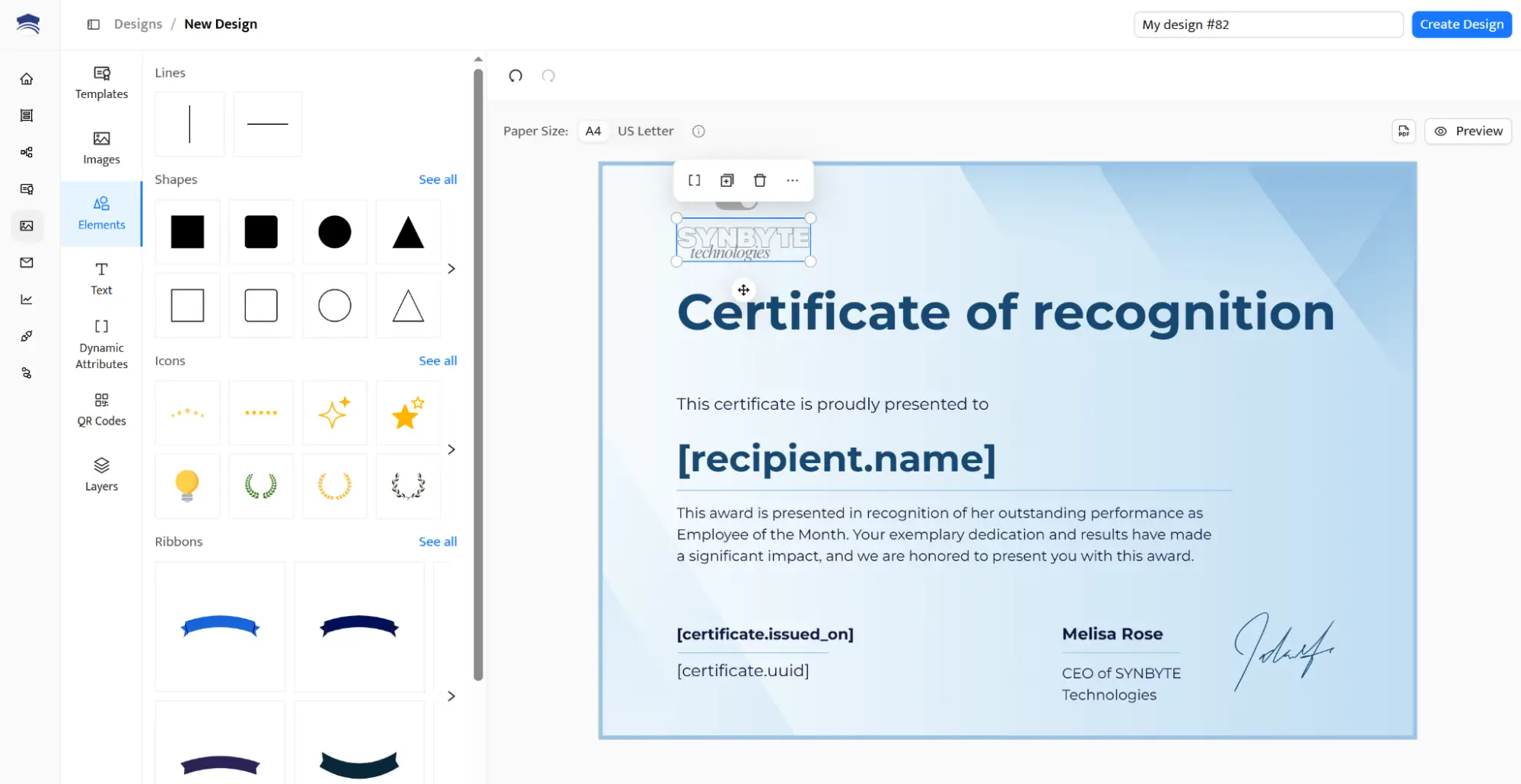
Adjust the layout and certificate of recognition wording as needed and as you prefer. It helps your certificates look consistent and professional, whether you’re recognizing employees, students or community members.
Dynamic attributes in certificates are what make Certifier powerful. Instead of creating certificates one by one, you add placeholders for information that changes per recipient.
To use them, you upload a CSV file where each row represents one recipient. Each column should match a dynamic field you added to your certificate design.
For example, your CSV file may include:
Recipient name
Email address
Date of issue
Certificate ID
Achievement, course or milestone (if different for each recipient)
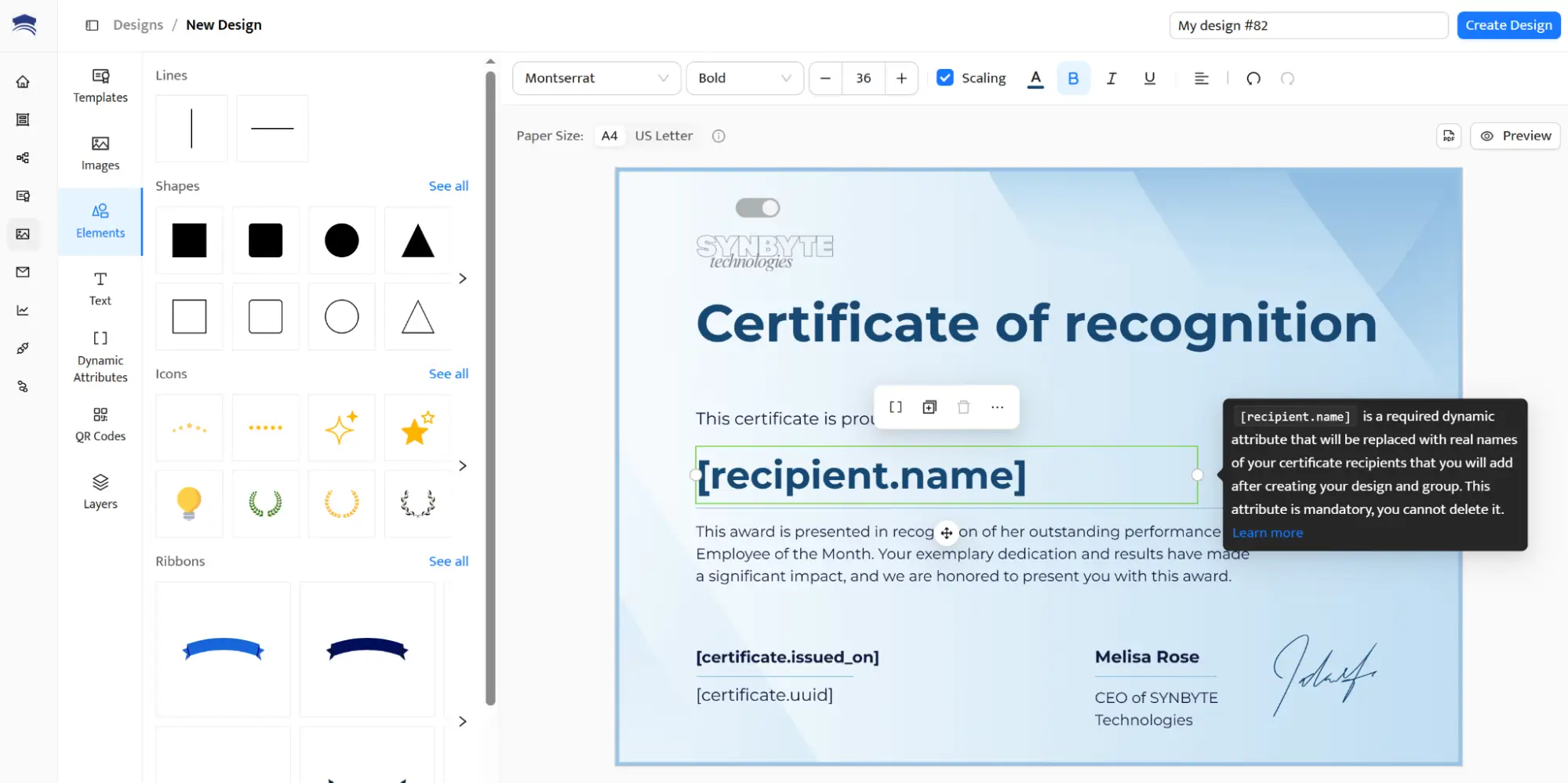
During the upload, Certifier asks you to map each column to the correct dynamic field. Once mapped, the system automatically fills in the right details for every certificate.
Tip: Skip CSV uploads with spreadsheet integration. If you don’t want to upload CSV files manually, you can connect Certifier directly to Google Sheets or Excel. Once connected, Certifier monitors your spreadsheet and automatically issues a recognition certificate every time a new row appears.
This is ideal for ongoing use cases like employee recognition, courses, student achievements or recurring awards.
Once the design is ready, change the design name and click Save.
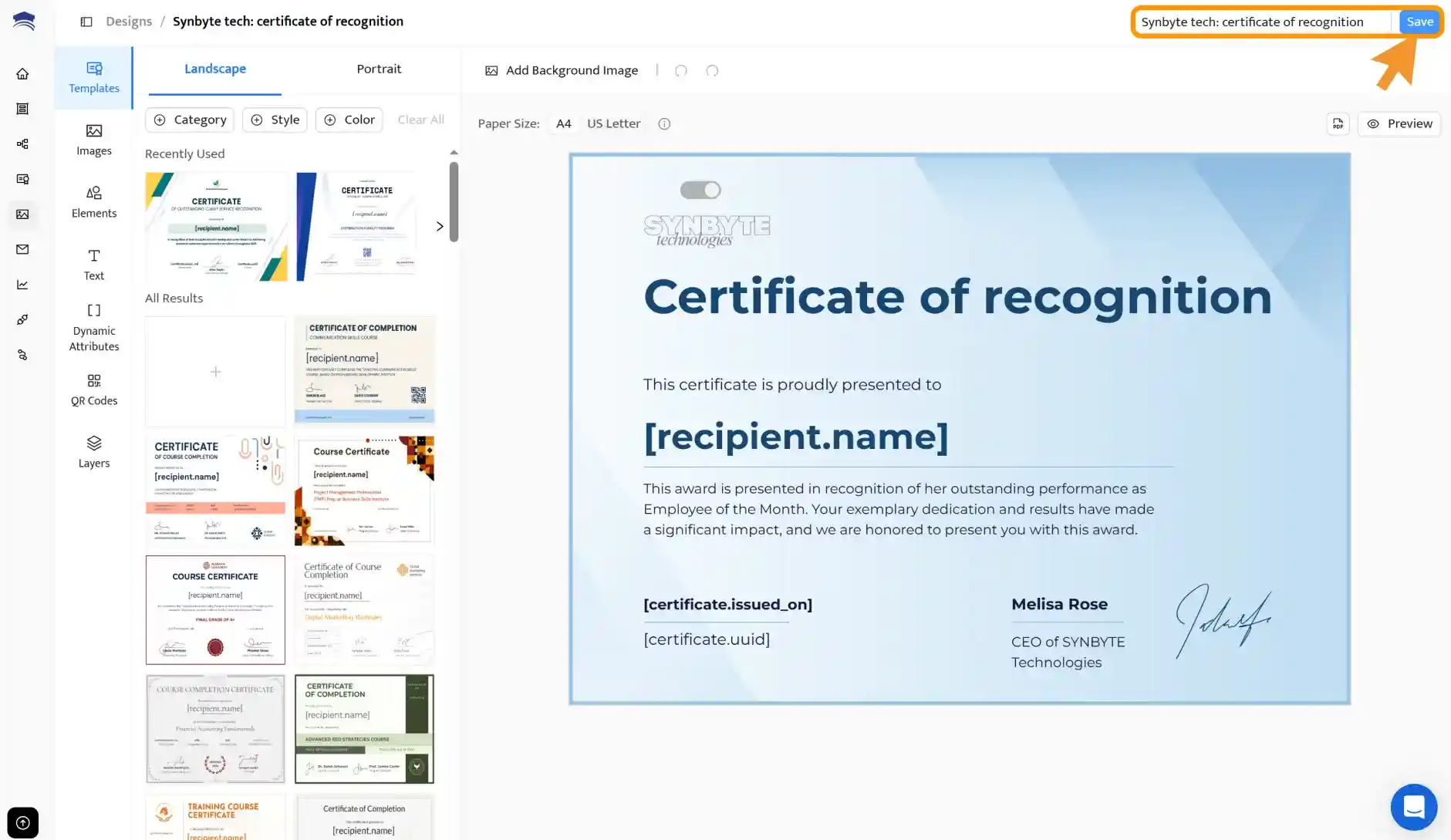
Once your design is ready, it’s time to issue the certificates. To do that, you need to create a credential template.
In Certifier, a credential template is where you connect your certificate design with a list of recipients. It helps you issue and send recognition certificates in bulk.
You need a credential template to keep certificates organized by occasion. Fill in the info about your template and adjust the email settings. When everything is set, select Create Credential Template.

Certifier lets you send certificates digitally, download them as PDF certificates or allow recipients to download and print them themselves. You can recognize individuals or entire groups in minutes.
You have two simple options, depending on how often you issue certificates: one-time upload with a spreadsheet or automatic issuing via a spreadsheet. You can use the aforementioned integration with Google Sheets or Excel.

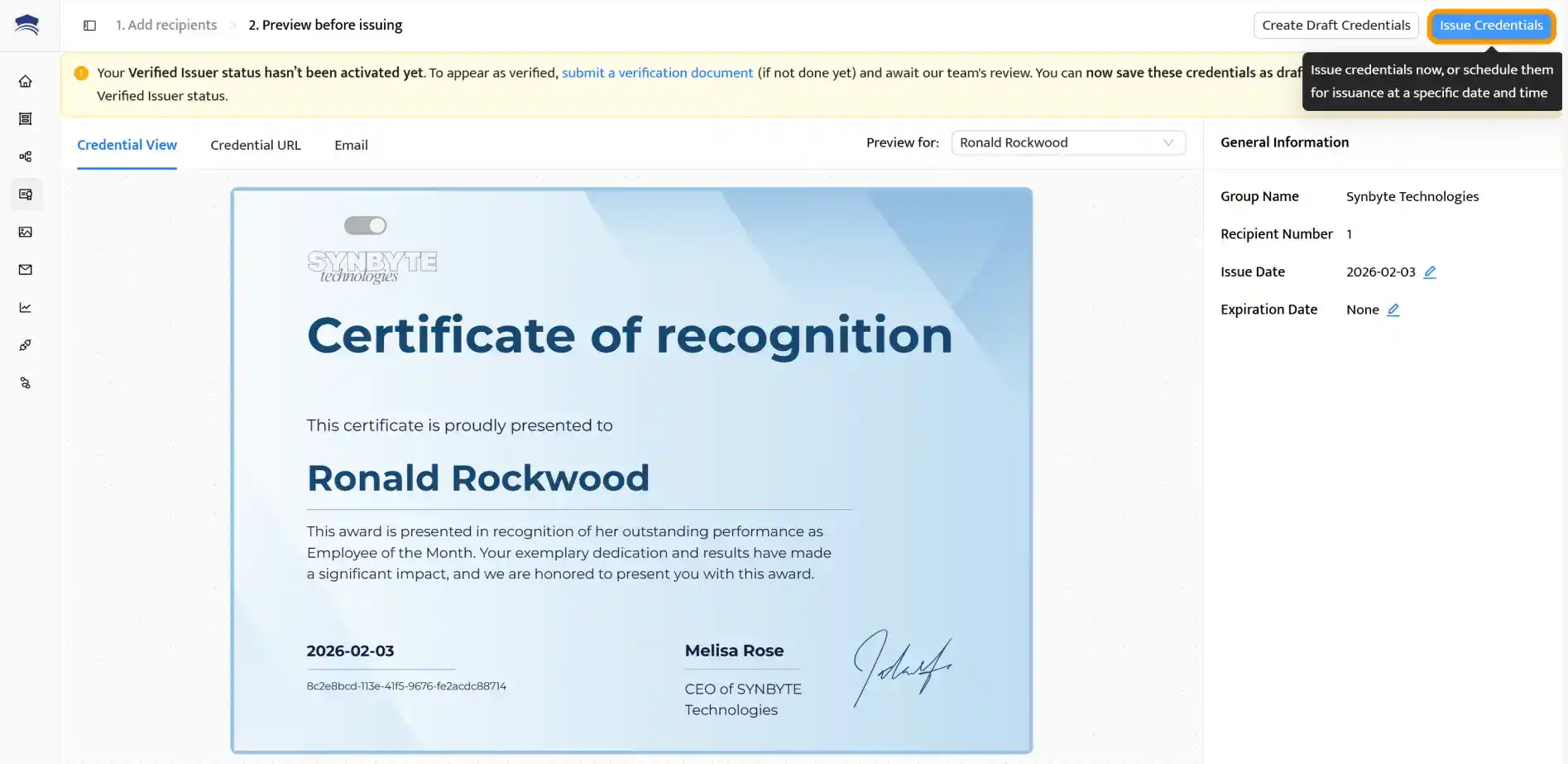
Before issuing, you can preview the certificate. If everything looks all right, click Issue Credentials.
Each person receives an email. The email message can be tailored for each recipient using an email template with a dynamic attribute, just as for a certificate. You can do it in the Emails tab. The message carries a secure link to their certificate.
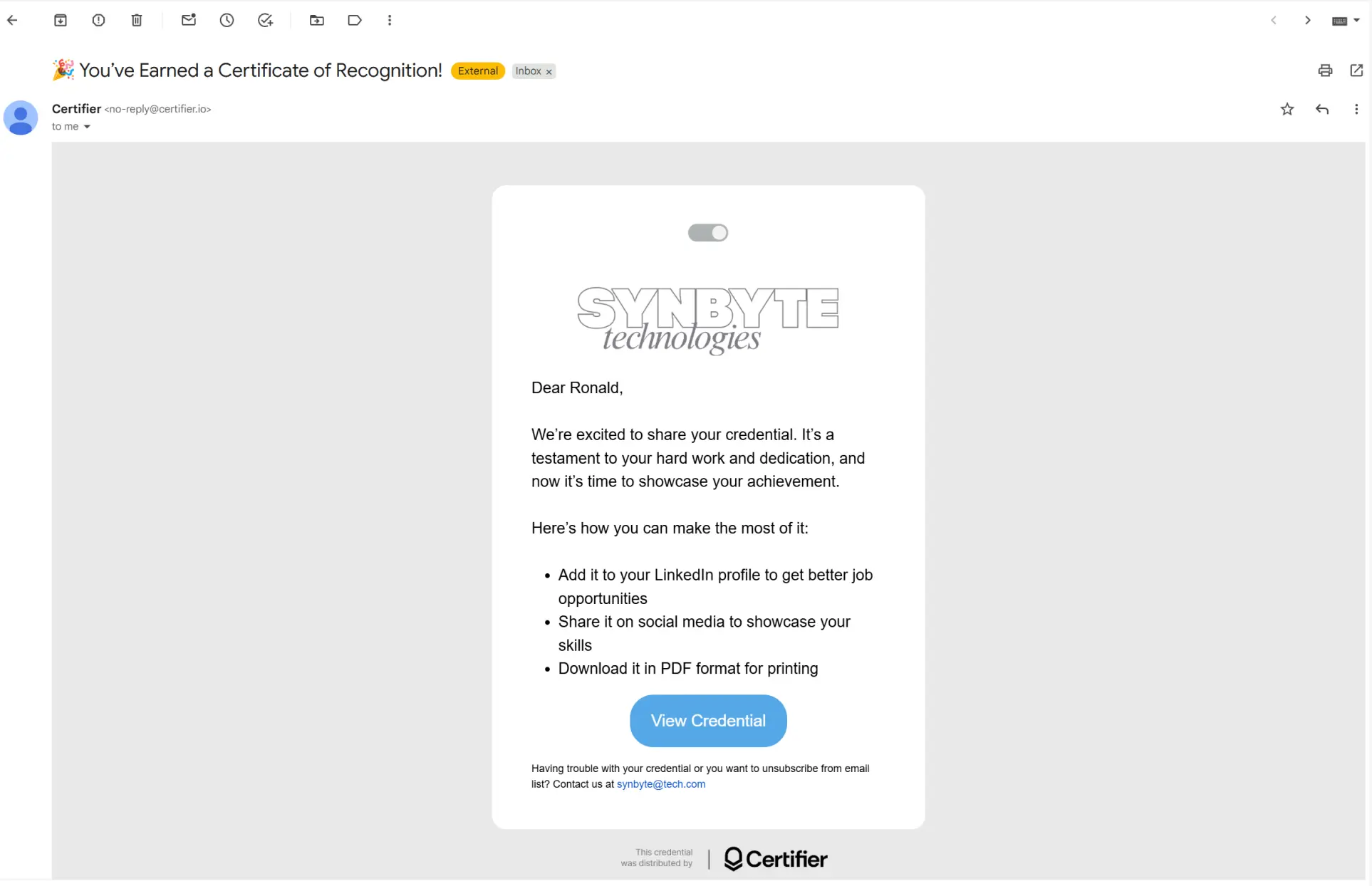
That link opens a digital credential wallet in the browser. A secure place where documents are stored. From there, recipients can instantly view their recognition certificate on any device.
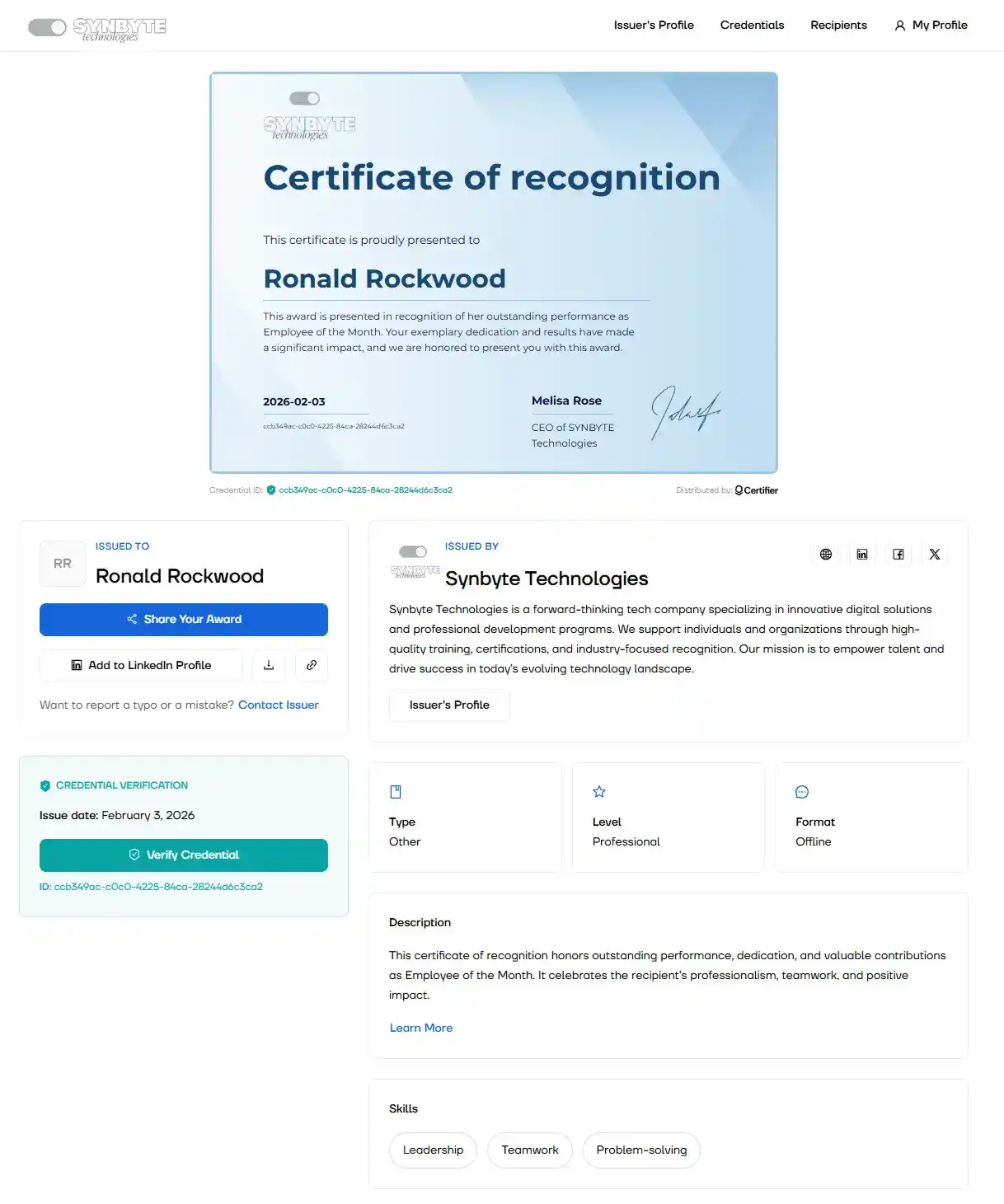
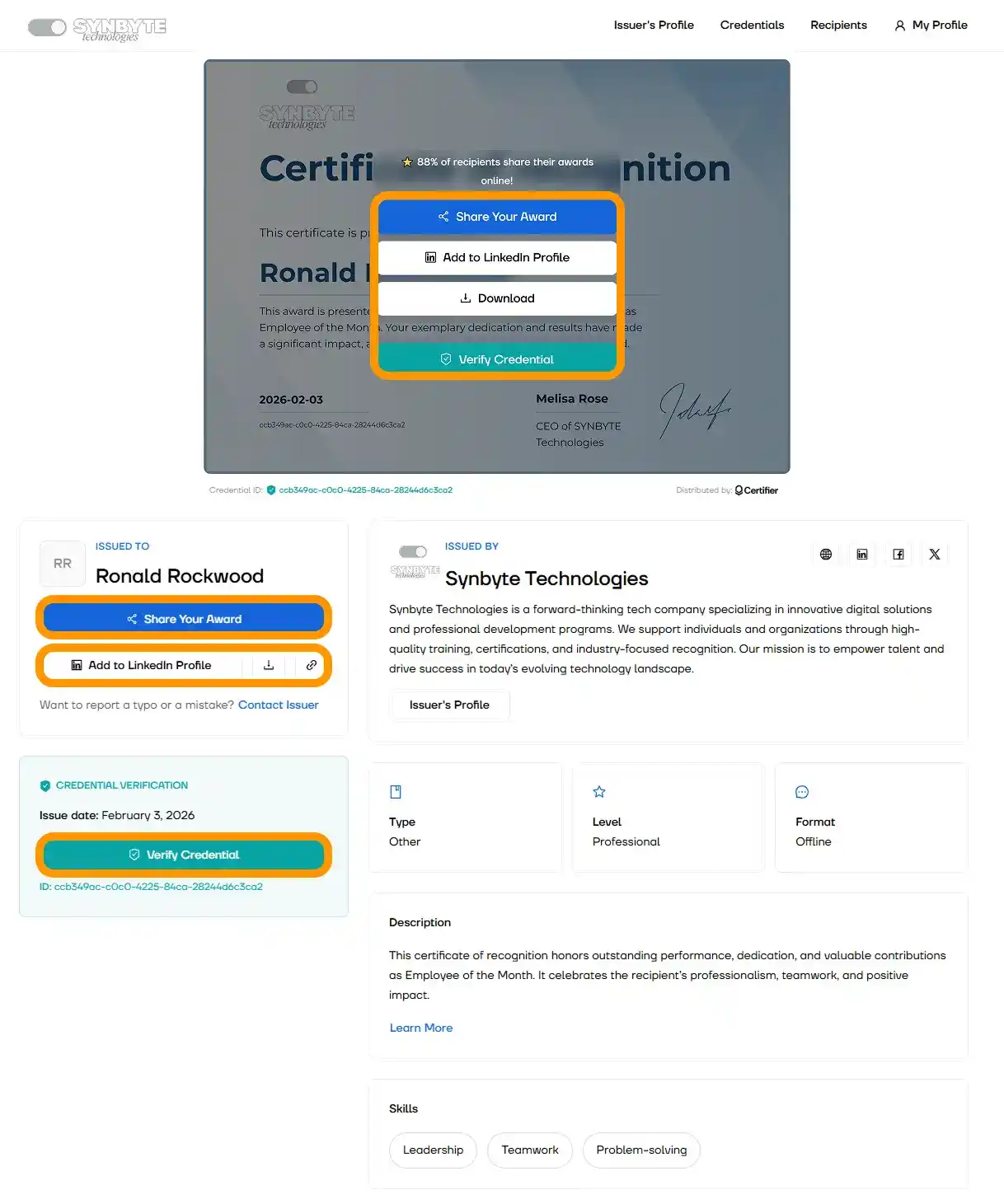
Also, they can verify their credential, download it, share on social media or add the certification to their LinkedIn profile.
Idea: Pair a certificate with employee recognition badges. Recipients will have both a badge and a certificate stored in a single digital wallet.
You can print a certificate of recognition in two easy ways.
Option 1: After you create a certificate of recognition, you or your recipients can download PDF certificates and print them.
Option 2: Recipients can also order a professionally printed certificate directly from their credential page. The order, payment and updates all happen inside Certifier.
The goal of the certificate of recognition wording is to sincerely acknowledge an achievement or effort.
Every effective recognition certificate should include:
Certificate title. For example: Certificate of Recognition or Award Certificate.
Recipient’s full name. This is the most important element and should stand out visually.
Reason for recognition. A short explanation of what is being recognized (achievement, service, completion, appreciation).
Issuer or organization name. Shows who is giving the recognition.
Date of issue. Helpful for records and formal use.
Signature or issuer name. Can be a typed name or a digital signature. Alternatively, you can use fonts that look like signatures to make the certificate more personal if you don’t have a digital signature.
Recommended to read
Optional but recommended:
Logo or branding
Certificate ID or verification element (for digital certificates)
When using Certifier, you can add all of these once and save them in a template. Then update recipient details only when issuing new certificates.
Keep the wording short and positive. One or two sentences of the main body are usually enough. Here are certificate of recognition sample texts, you can use as inspiration.
General recognition
This certificate is awarded to [Name] in recognition of their valuable contribution and dedication.
Employee recognition
This certificate of recognition is presented to [Name] for outstanding performance and commitment to excellence in project delivery and teamwork.
Course or training completion
This certificate is awarded to [Name] in recognition of successfully completing [Course name]. Through this course, [Name] demonstrated skills in project management, communication and problem-solving.
Service or milestone
This certificate of recognition honors [Name] for their years of service and continued contribution to our organization. Their ongoing commitment and professionalism are truly valued and appreciated.
Student recognition award wording
This certificate is presented to [Name] in recognition of academic achievement and dedication to learning. Their commitment to growth and consistent effort reflects a strong pursuit of knowledge and excellence.
Certifier is a great option for creating recognition certificates at scale, but it’s not the only way.
Depending on your needs, you can also create a certificate of recognition using AI tools, graphic design platforms or basic text editors. Below is a quick overview of these alternatives and when to use them.
If you need a certificate fast and don’t want to think about layout or wording, an AI certificate generator is the quickest option.
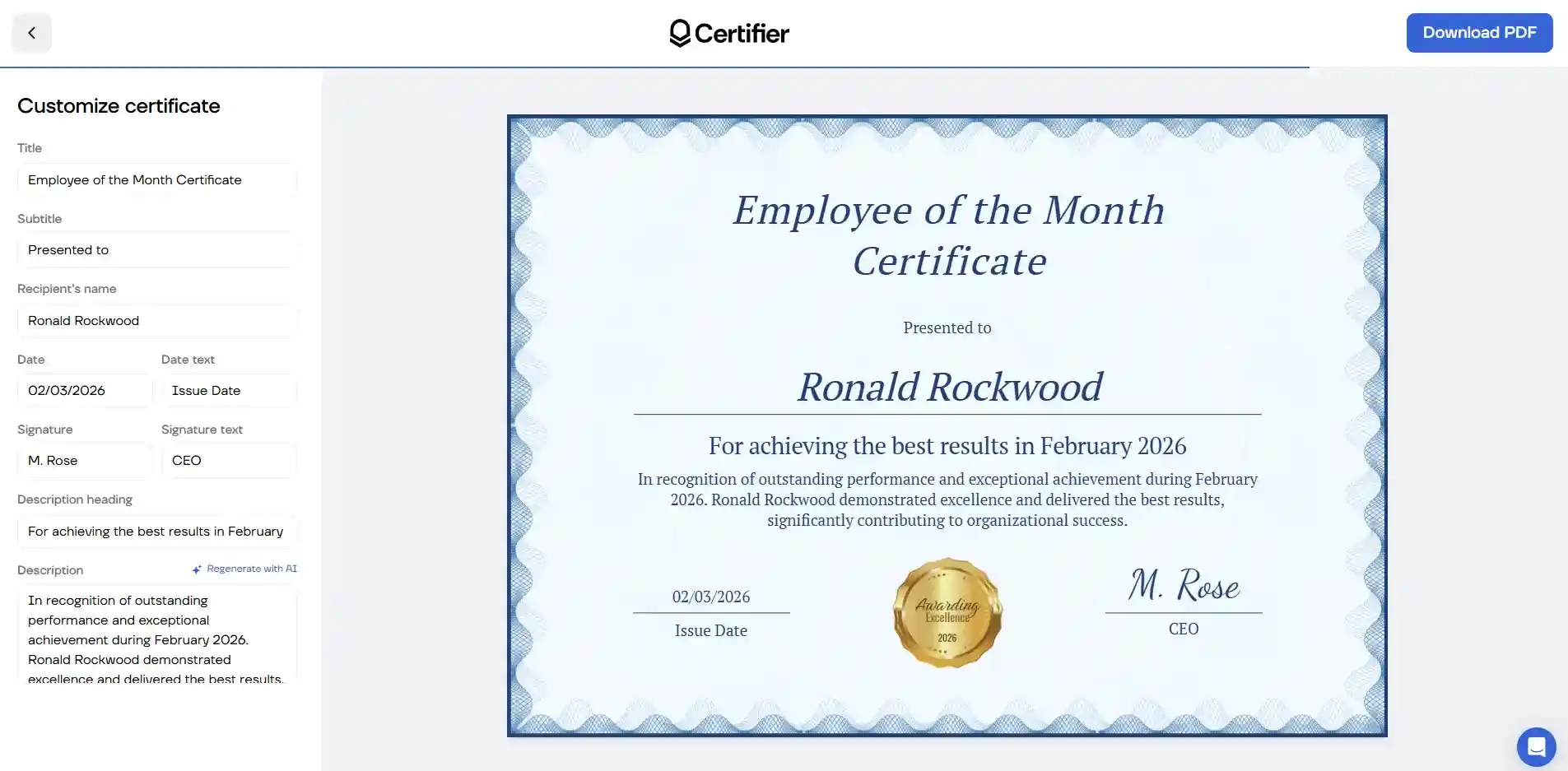
With Certifier’s AI generator, you simply describe what you need—such as the type of recognition, the recipient and the occasion. The AI creates a clean, professional certificate design and suggested text for you. From there, you can edit the wording, adjust colors or fonts and download the certificate as a PDF.
This works especially well when you:
Need a one-time certificate
Want inspiration for wording or layout
Don’t want to start from scratch
Might issue certificates of recognition in bulk in the future
Important: If you later decide to create certificates of recognition at scale, you can save the AI-generated design and turn it into a reusable template inside Certifier.
Another common way to create a recognition certificate is to use graphic design tools such as Canva or Adobe Express. However, these tools don’t offer bulk credential issuance, email sending and certificate management, unlike Certifier.
These tools offer ready-made layouts and let you design a certificate visually by editing text, colors, images and icons. You can download the result as a PDF and print it or share it digitally.
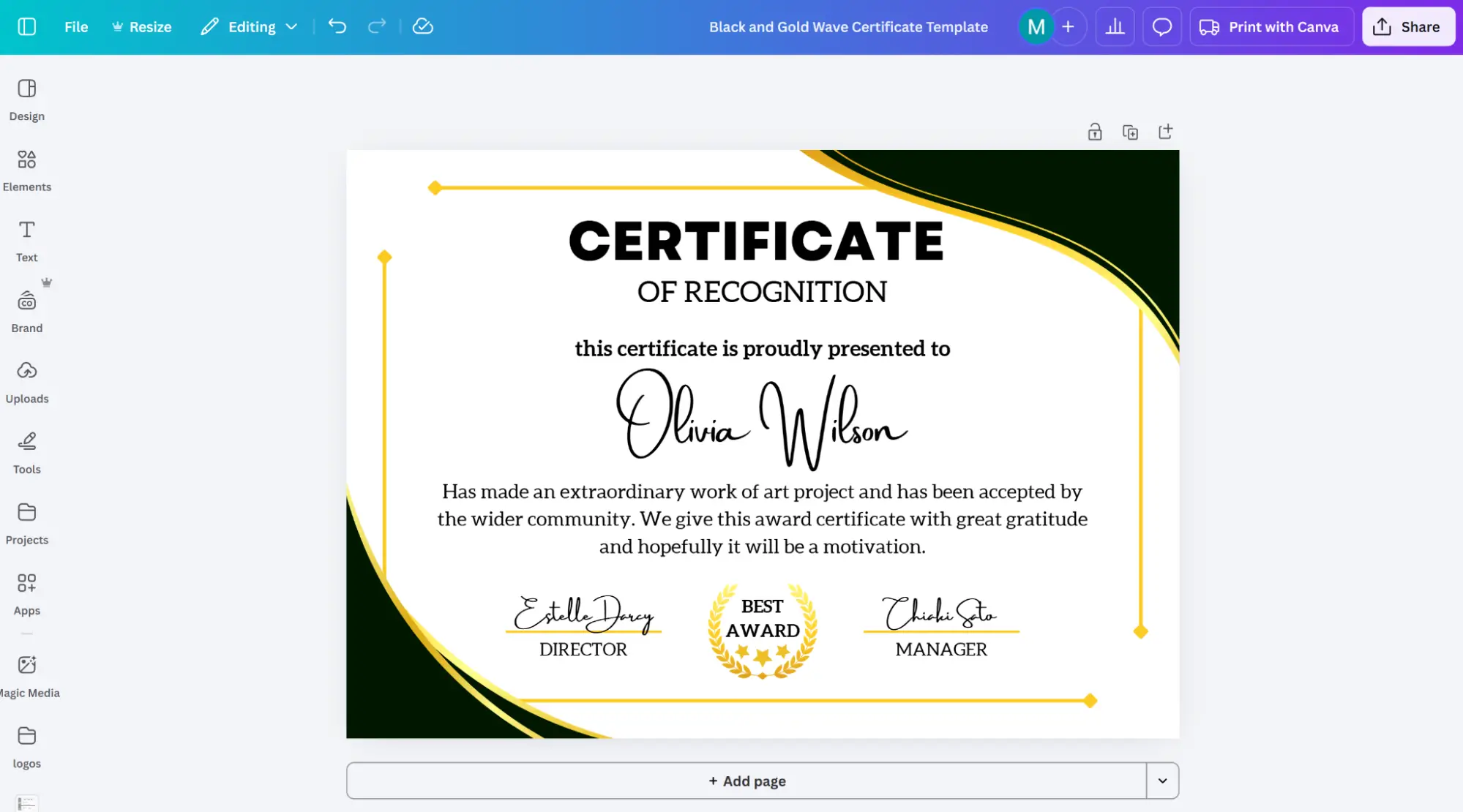
Graphic tools are useful when:

You only need one or two certificates
Design is the main priority
You’re creating a static document
Recommended to read
You can also create a certificate of recognition using basic text editing tools like Microsoft Word, Google Docs or Pages. This approach works when you only need a simple document and want full control over the text.
With text editors, you manually:
Type the certificate wording
Adjust fonts, spacing and alignment
Insert logos or images
Save or export the document as a PDF
This method can work for one-off use, but it becomes time-consuming if you need to make a certificate of recognition for multiple people. Every certificate must be edited and saved separately.
Watch this short walkthrough video that shows how it’s done step by step in Microsoft Word:
It all depends on your needs. You can create beautiful certificates using any of these tools, but if you care about optimizing your work while maintaining high quality and personalization, Certifier is the tool to go.
Feature Certifier Ai Generator Graphic Tools Text Editing Tools Best for Ongoing recognition One-time use One-off designs Very basic, one-time use Templates Yes, a lot! Limited ✓ ✕ Design skills needed ✕ ✕ ✓ ✕ Bulk certificates ✓ ✕ ✕ ✕ Automation ✓ ✕ ✕ ✕ PDF & print ✓ ✓ ✓ ✓ Verification & sharing ✓ ✕ ✕ ✕ Manage certificates ✓ ✕ ✕ ✕
When you make a certificate of recognition, you need some good benchmarks. Check out these editable templates. Click the blue button below and you’ll be directed to Certifier’s editing tools. Adjust according to the instructions above, adding your branding and relevant wording.
They’re all free to use!
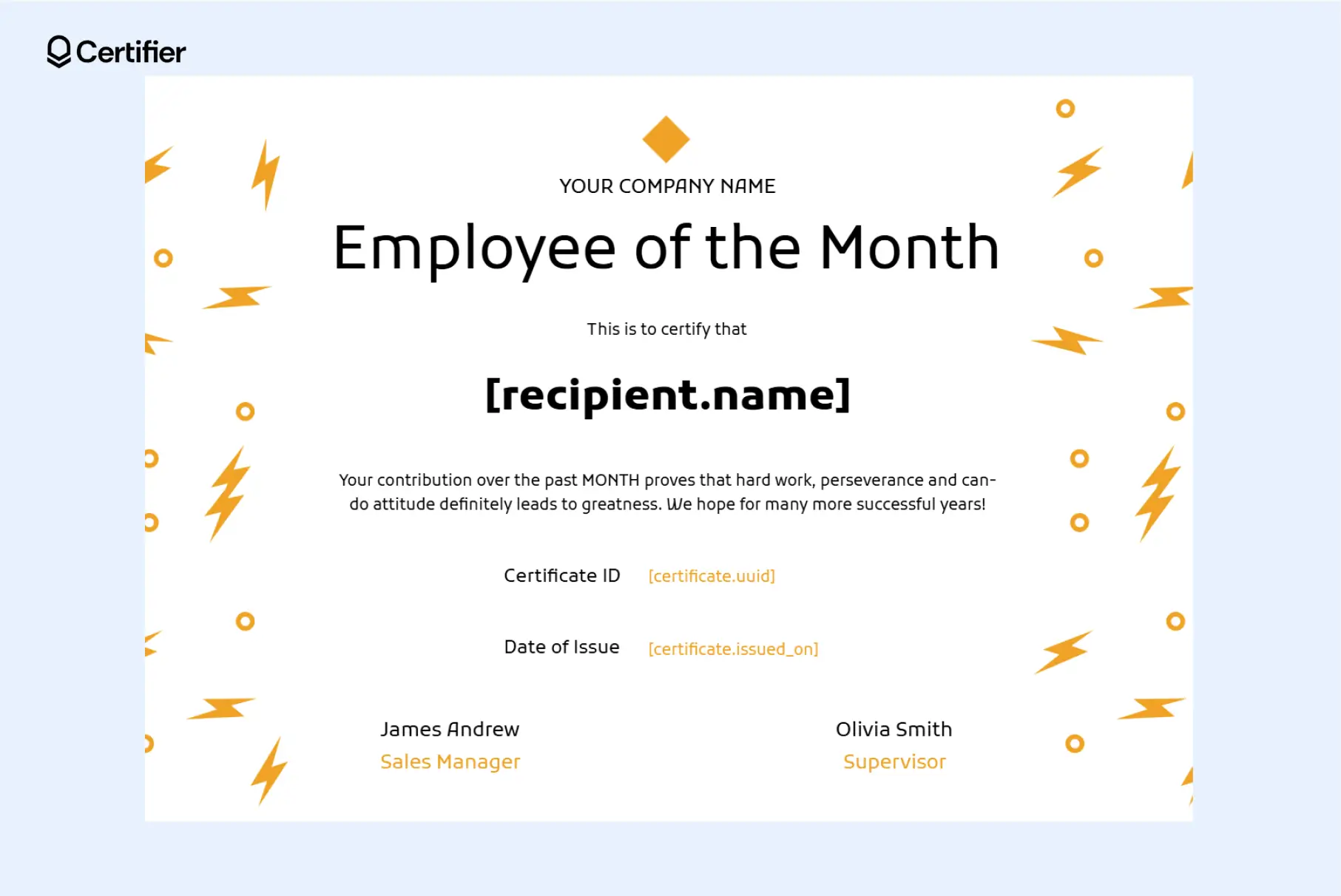
This employee certificate of recognition is modern and built for recurring employee recognition. It’s easy to reuse every month—just update the recipient name and date or automate the process entirely.
Best for: employee appreciation, monthly awards, internal recognition.
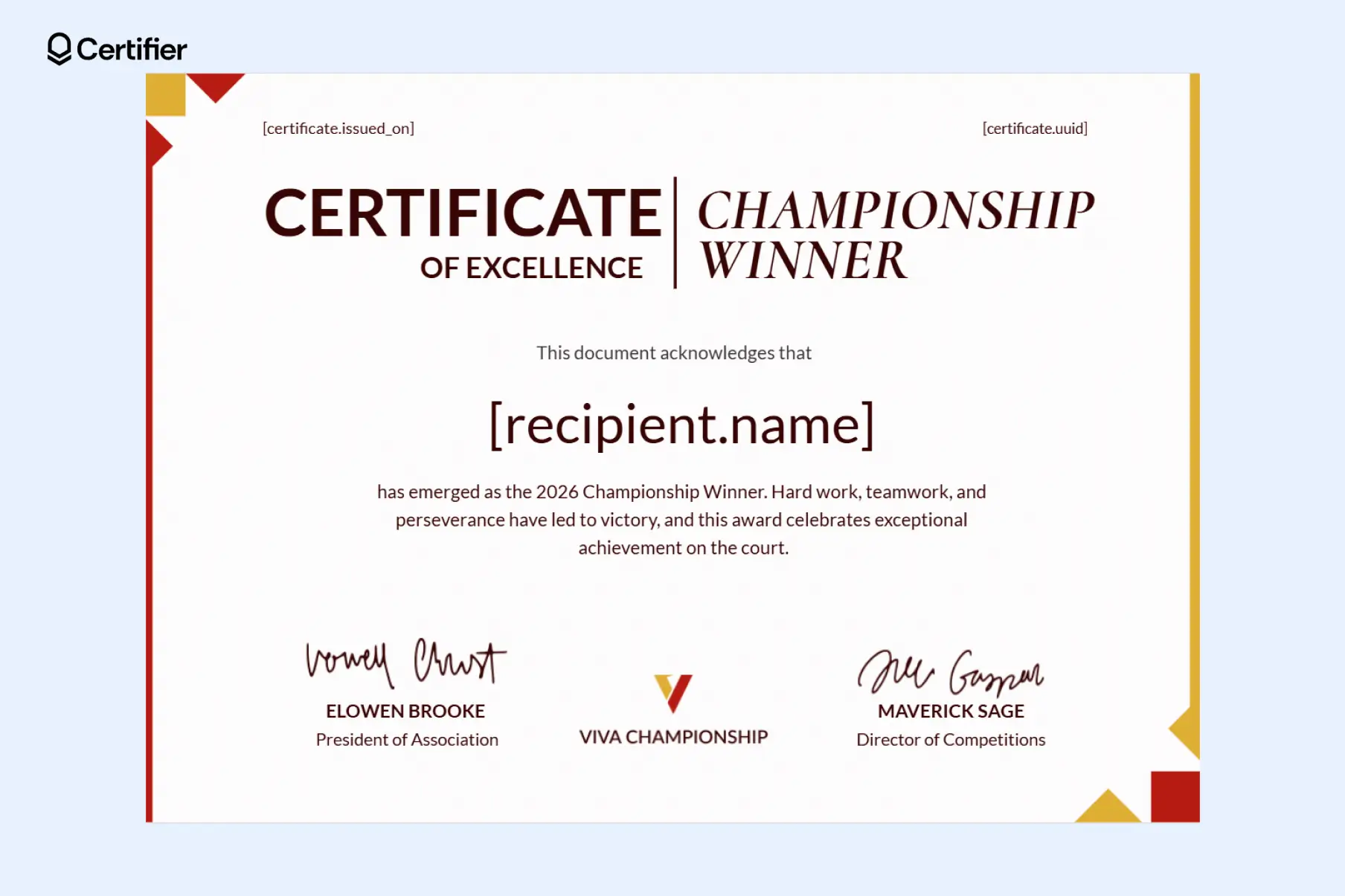
Feel free to change the certificate of recognition sample text to fit your contest context. This template puts the winner front and center.
The layout is celebratory yet professional, making it ideal for competitions, championships or top-performer awards.
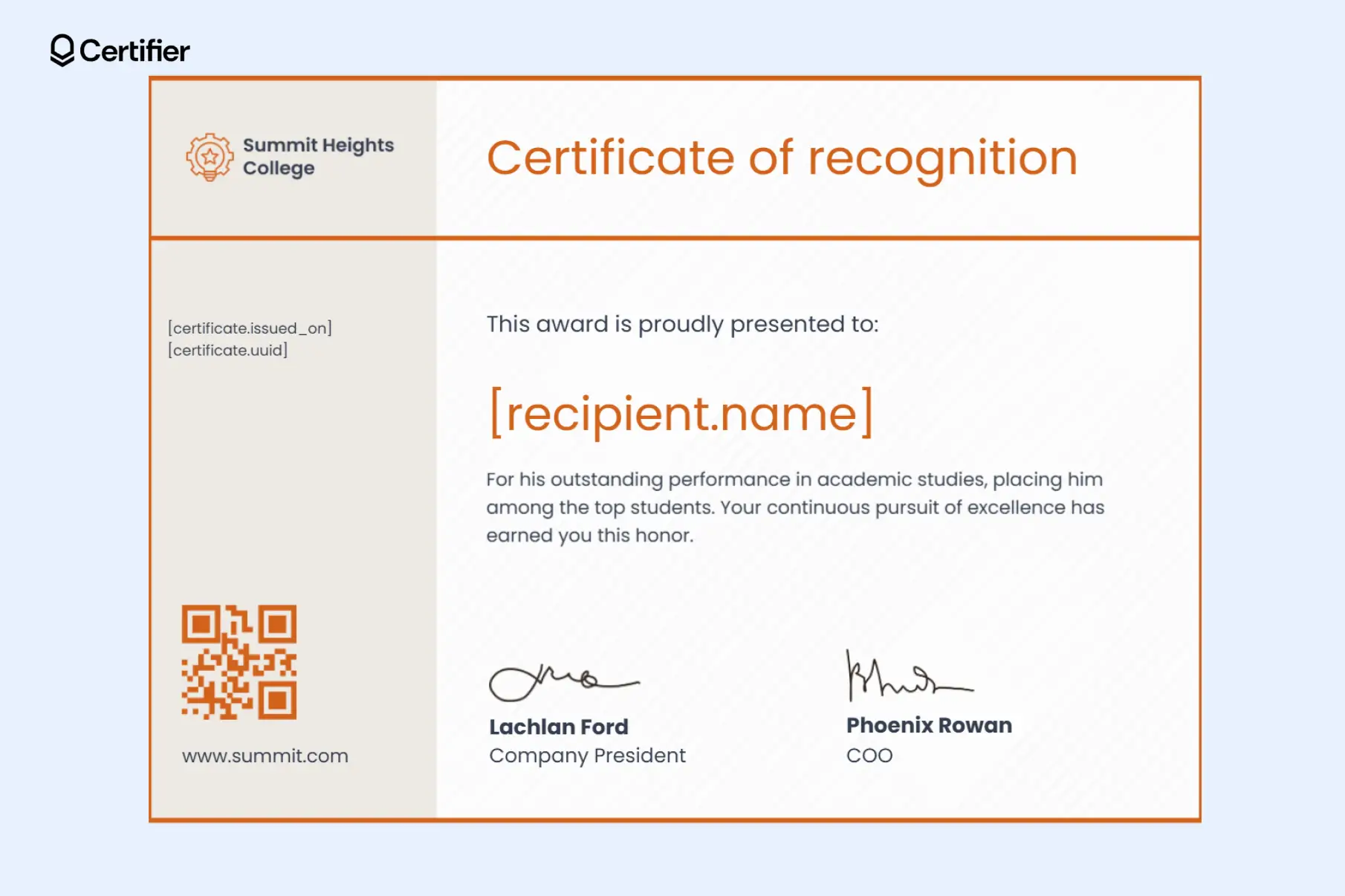
Need student recognition ideas? This editable certificate of recognition sample is ideal when recognition needs to be verifiable. It includes QR code certificate verification–it may lead to a verification page or a website that you choose, for instance, to your educational institution homepage.
In Certifier, the QR code is added automatically and stays unique for every recipient.
You can create a certificate of recognition in several ways—using text editors, graphic tools, AI generators or a dedicated certificate tool. Each option works for different needs.
Certifier, a certificate management tool, is the best choice for a faster, more organized way to manage recognition. Sign up for Certifier to make certificates of recognition in only four steps.
Below are quick, practical answers to the most common questions about recognition certificates—what they are, how to create them and when to use them.

- Product Management
- Customer Research
- Digital Credentials
- Product Strategy
- Design Systems
Product Manager
Uliana leads product management at Certifier, using her UI/UX background to explain platform features and help organizations maximize their credentialing capabilities.