
Trusted by:
University of Southern California
Warner Bros.
Volvo
Amazon
Stanford University
Updated: September 15, 2026
7 min read
Create attendance certificates at a higher standard with Certifier. Generate branded documents that people share and lowkey promote your event or course organically.
Research with AI:
Are you an event organizer, educator or trainer? You have the agenda or course materials prepared and there’s one task left: create attendance certificates.
This step often takes longer than expected. Names need to be correct, designs need to look professional and certificates must be sent to every participant. Doing all of this manually can slow you down and lead to unnecessary errors.
We’ve got you covered. In this guide, you’ll learn how to create attendance certificates using Certifier, an online credential management tool built to simplify certificate creation and delivery.
We’ll show you how to choose a template, personalize certificates automatically, send them to attendees and track engagement—all in one clear process.
TL;DR
Attendance certificates provide official proof of participation and add value for both attendees and organizers.
With Certifier, you can create attendance certificates online using ready-made templates or a blank design.
Certifier lets you personalize certificates automatically, send them in bulk and track opens and shares.
You issue up to 250 attendance certificates for free after signing up for Certifier

Attendance certificates confirm that a person participated in an event, class, course or training. Their purpose is simple: to acknowledge participation, not performance or achievement.
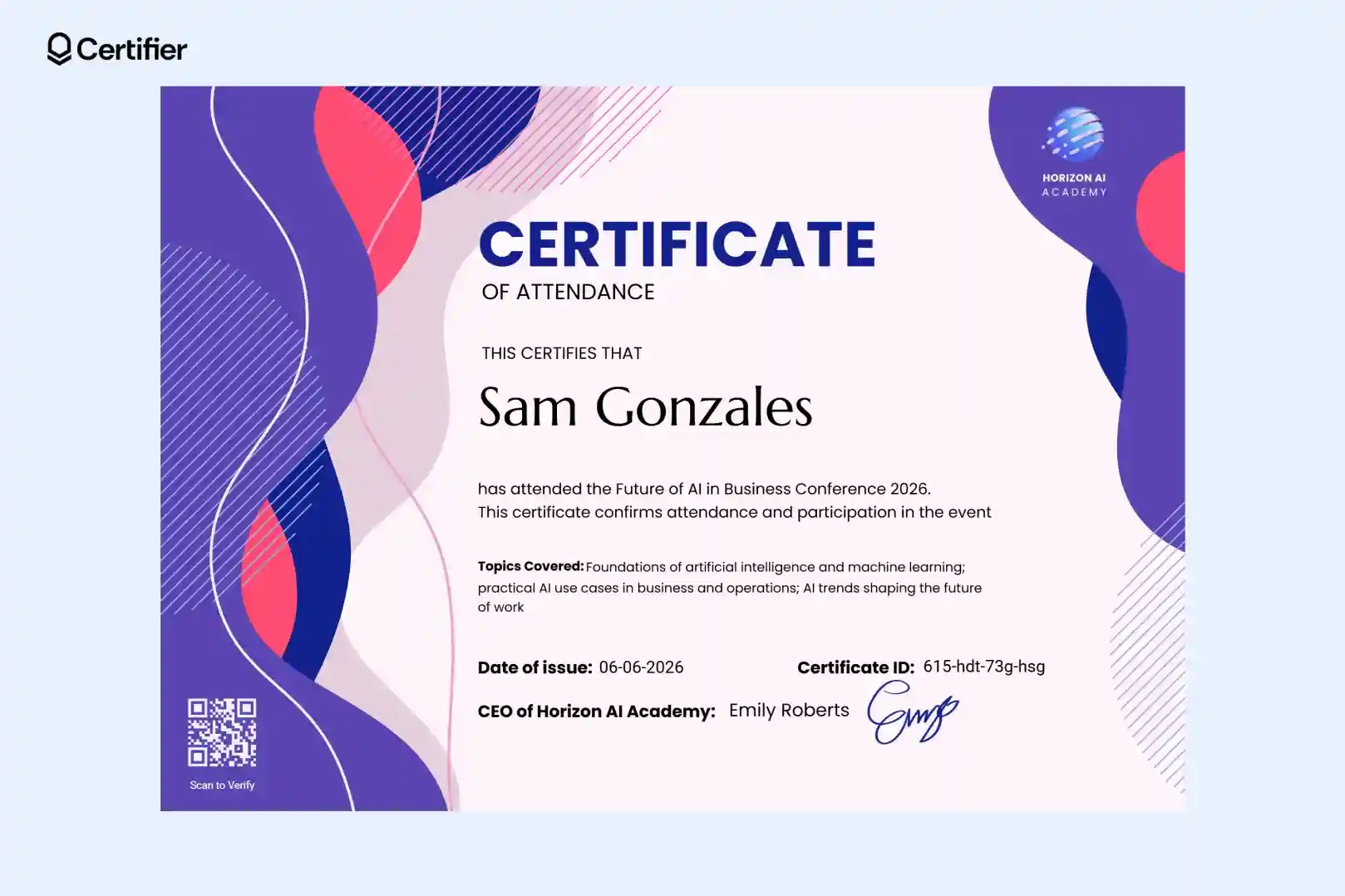
Unlike certificates of completion or awards, attendance certificates do not assess skills or outcomes. They only show that someone was present and participated in a specific activity at a specific time.
Attendance certificates might seem like a simple add-on to an event or workshop, but they play a meaningful role for both participants and event organizers.
At their core, these documents serve as proof that someone took part in a learning experience. And that proof matters in more ways than you might expect.

They increase the perceived value of the event. Certificates signal that the session was intentional and worth documenting, which can positively influence how attendees or sponsors view it.
They encourage engagement and completion. When participants know they’ll receive official confirmation of attendance, they’re more likely to stay involved.
They simplify record-keeping and reporting. Certificates create a clear record of who attended, when and what they participated in.
They promote your brand beyond the event. Certificates that include your own logo and visual identity often get saved or shared (for example, on LinkedIn), helping reinforce brand recognition even after the event ends.
They provide formal proof of participation. Many employers and professional bodies ask for documentation of training or seminar attendance. A certificate confirms the event name, date and participation in a shareable format.
They support ongoing learning and development. While attendance certificates don’t assess skills, they still show commitment to learning and can contribute to professional or academic records.
They acknowledge time and effort. Receiving a certificate reassures participants that their presence mattered and helps the experience feel complete, especially after longer or multi-day events.
If you want to create attendance certificate workflows that free you from manual design or one-by-one sending, Certifier is your go-to tool.
It’s a certificate management system that helps you take care of everything, from designs to certificate distribution, including how people engage with your attendance certificates.
You work through one clear flow: design → data → delivery → tracking. Here’s how it works in practice.
To create attendance certificate online, sign up for Certifier. The free plan lets you test the full workflow and issue up to 250 credentials, which is enough for most small events or workshops. You can always upgrade your plan.
Issue first certificate in 10 minTry our digital credentials platform to generate your first batch of certificates.
Once you’re in, go to the Designs section. You have two options:

Choose a ready-made attendance certificate template (recommended)
Start with a blank certificate
Attendance certificate templates are usually the fastest option for beginners. They already include a clean layout standard wording and space for participant details.
You can treat them as a starting point and adjust everything later. If you want a broader overview of the design flow, this guide on how to create certificates in 5 steps explains the logic behind Certifier’s setup.
This is also where many users realize they can create free attendance certificate designs without any design software or downloads.
Open your chosen template in Certifier’s visual editor. Where to find templates? You can:
Browse the whole certificate templates library
Go to the article where we gathered 15 attendance certificate templates and draw inspiration from them
Everything happens directly in the browser. Here, you can:
Change fonts, text size and alignment
Adjust colors to match your event or organization
Add your logo, signature or background
Edit the wording so it fits your event, class or training
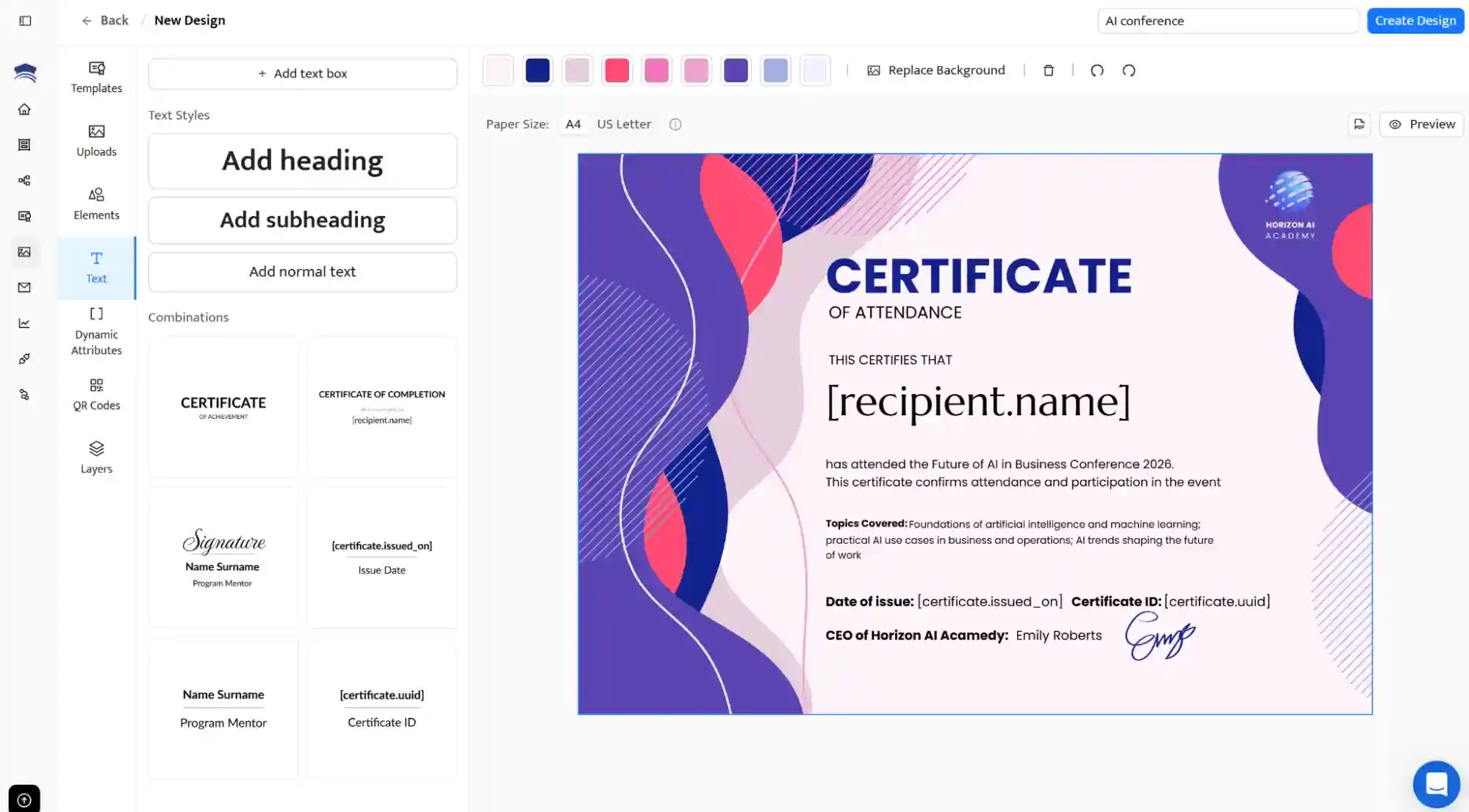
This step is where you turn a generic template into a branded certificate. When adjusting certificate templates in Certifier, it helps to know that every certificate consists of two types of elements:
Static elements–these are parts of the certificate that stay the same for all attendees (title, event name organization’s logo or signatures)
Dynamic elements (dynamic attributes)–these are placeholders for information that changes for each participant. Dynamic attributes in certificates are used for details such as: participant name, certificate ID, QR code for credential verification, etc. You can create custom dynamic attributes according to your needs.
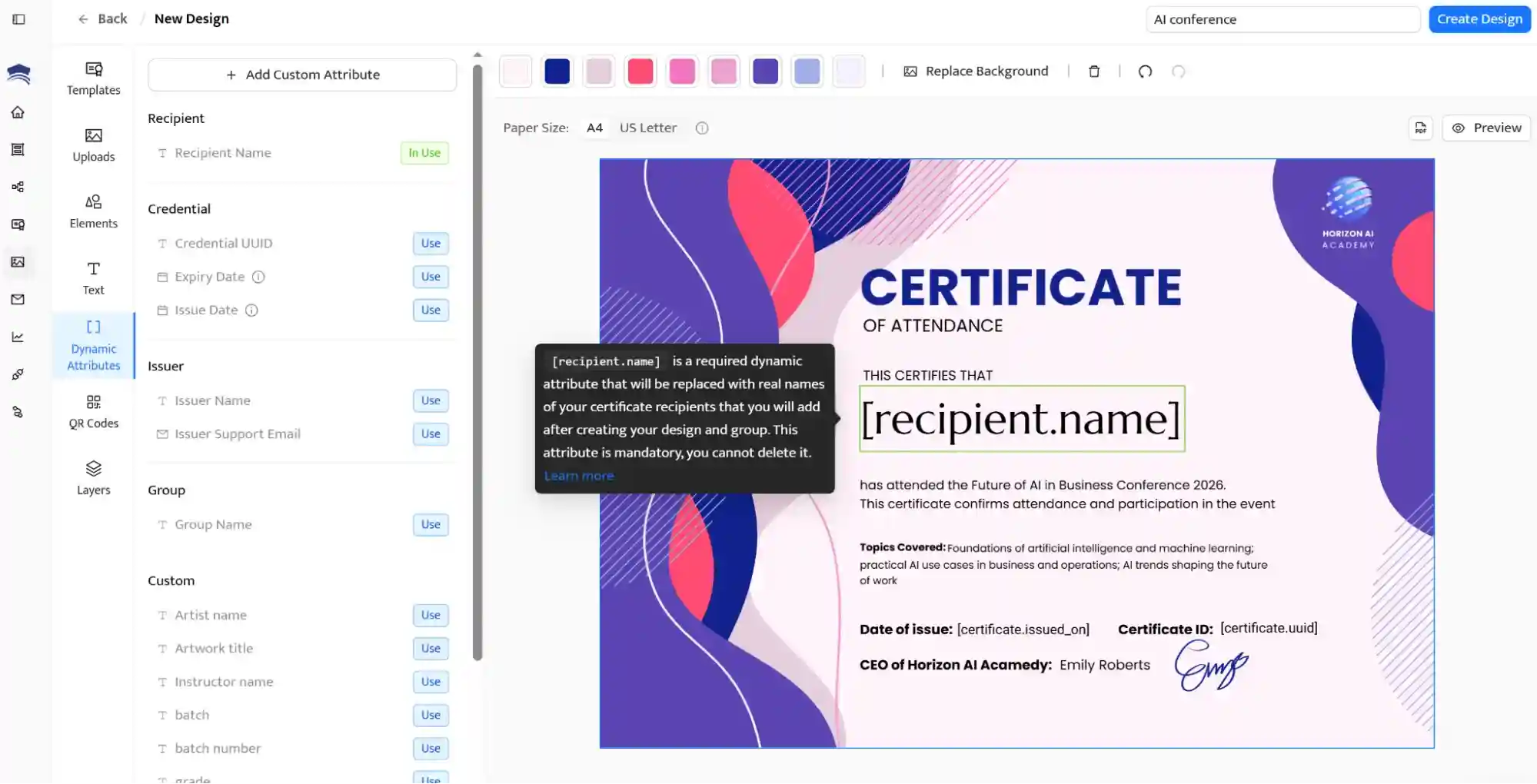
Tip: Use the HEX code to adjust the attendance certificate colors to your branding.
Recommended to read
Once the design is ready, you move on to recipients. Go to the Credential Template tab to create a template. It connects a certificate design with a list of attendees.
You can add attendees in a few ways:
Upload an Excel or CSV file
Connect a Google Sheets file
Automatically pull attendees from your event app, like RingCentral, Eventbrite, or other tool. You can connect using Certifier Zapier integration)
For events hosted on Eventbrite, the integration is especially useful. After connecting your Eventbrite event, Certifier imports attendee data and uses it to generate certificates automatically. This removes the need to export lists, clean spreadsheets or manually copy emails.
Do you use Evenbrite? Read the full walkthrough in this guide on Eventbrite certificate of attendance automation.
Certifier can also connect with other event and webinar tools through integrations and automation platforms. This means certificates can be issued automatically after a webinar ends or a form is completed.
Recommended to read
Before sending anything, you customize the email attendees will receive.
In the Emails tab, you can:
Edit the subject line and message
Personalize the content using the same placeholders as the certificate
Add your branding and sender details
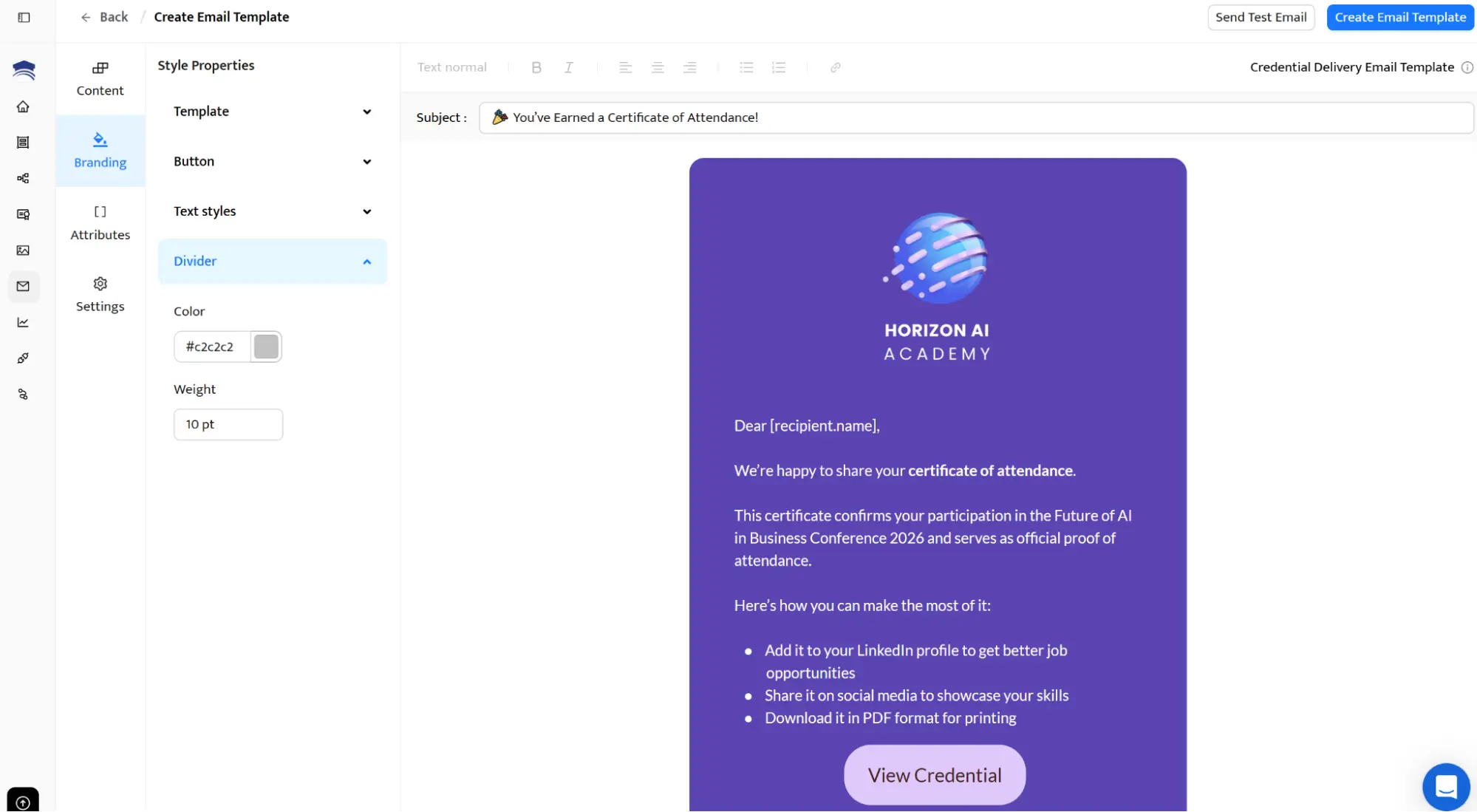
Each email includes a secure link to the participant’s certificate. Certifier automatically tracks whether emails were delivered and opened, so you don’t have to guess if certificates reached the right people.
This step is key if you want to create certificate of attendance workflows that feel professional and reliable. If you’re a corporate training provider or you run external events, we highly recommend this step.
Once everything is set, you issue the certificates. Certifier generates a unique, verifiable certificate for each attendee and sends it automatically.
After sending, you’re not done—this is where the business value comes in.
From the dashboard, you can:
See who opened their certificate
Track views, downloads and engagement
Monitor social sharing and link clicks
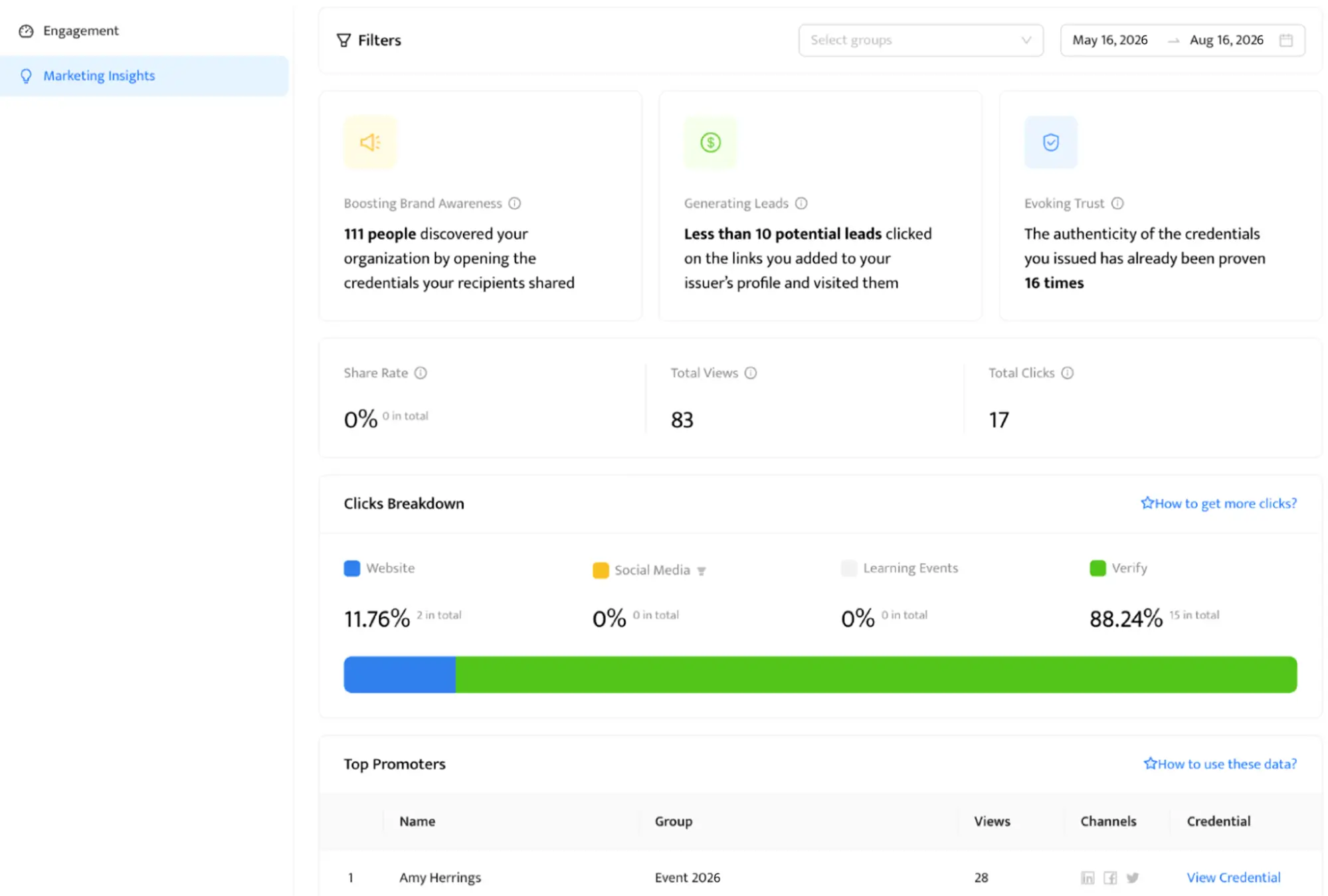
Attendance certificates can be shared on social media directly from the recipient’s digital credential wallet, which helps extend your event’s reach.
Certifier’s built-in social features are designed specifically to share attendance certificates on LinkedIn without extra steps.
If you want to take automation further, this guide on automating event certificates explains how to connect Certifier with your existing tools so certificates are issued automatically after each event.
When you create attendance certificate online, the design matters, but clarity and credibility matter even more. A professional attendance certificate should be easy to read and useful long after the event ends. These are the elements that make that happen.
01Recipient’s full name. This is the most important element on the certificate and should stand out visually. Use a bigger font and bold it.
02Event details and date. Include the event, course, workshop or training name, along with the date (or date range). This context is essential when certificates are used as proof of participation months or years later.
03Issuer name and signature. This info shows who is confirming the attendance. Adding your logo and a signature (typed or digital) increases trust and makes the certificate feel official rather than generic.
04Verification via QR code. A QR code allows anyone viewing the certificate to verify its authenticity instantly. In Certifier, QR codes are generated automatically in the certificate template editor, you don’t need any extra tools.
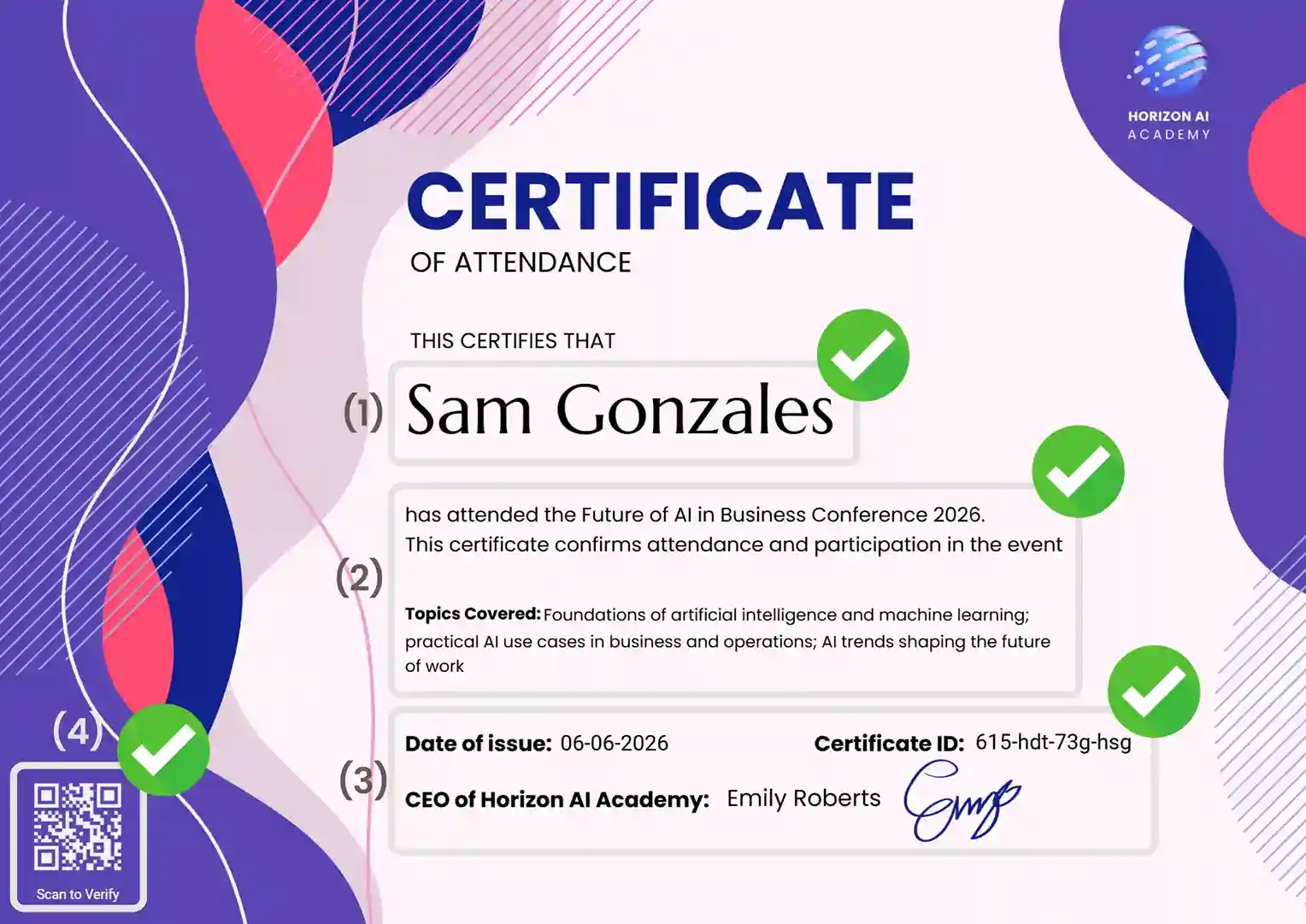
Speaking of a QR code. With Certifier, you can create one that links to a verification page that confirms the certificate is valid or your event or organization website for additional context.
You can include two QR codes on the same certificate. One for verification and one that links to your event or training website. Certifier generates unique QR codes for every recipient, so each certificate stays secure and traceable.
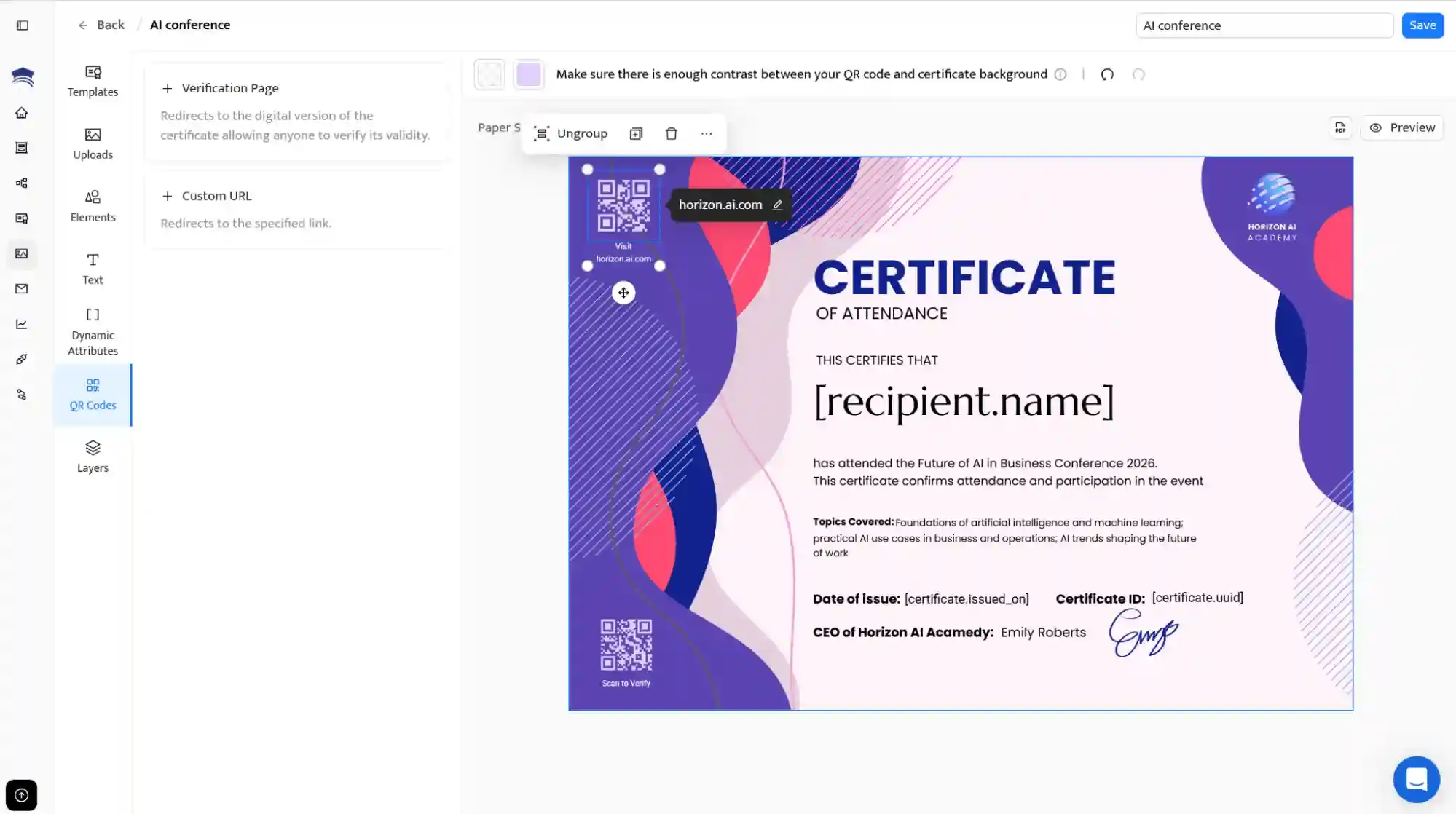
Beyond verification, this creates real business value. Every time a certificate is viewed or shared, it becomes free, organic promotion for your event or organization.
These elements are easy to add when you create online attendance certificate designs in Certifier. Define them once in the template and they appear consistently across all issued certificates, whether you issue ten or a thousand.
Tip: For workshops, recipients may also need a letter when submitting attendance to an employer or professional body. Document templates like this professional brown workshop attendance letter give organizers a ready-made format for the participant, workshop, date and organizer details.
Attendance certificates should be easy to create and easy to manage. You don’t need separate tools for design, delivery or tracking.
With Certifier, you can create certificate of attendance once and reuse them for every event. Each certificate is automatically personalized and sent to the correct recipient. You can also see who opened or shared it.
If you want to stop handling certificates manually, sign up for Certifier. You can start for free and issue attendance certificates in minutes, even if you’ve never done it before.
Below are clear, practical answers to the most common questions about attendance certificates, from creating them online to automating the entire process.

- Content Writing
- On-page SEO
- Localization
- Market Research
- Keyword Research
Content Specialist
Daria creates practical guides and templates that help training providers, educators, and event organizers solve digital credentialing challenges.